
Main steps to connect to our strategies.
- Register on one of the exchanges if you don't have an account yet:
www.binance.com
www.bybit.com
www.okx.com
BingX - Create exchange API keys (step-by-step guides below).
- Deposit USDT into the Futures/Derivatives wallet of your exchange.
- Connect the API keys to an EDVI strategy on the Strategies page. Your 7-day free trial starts at that moment - no payment required.
- To keep trading after the trial, top up your EDVI wallet and subscribe to the EDVI plan on the Pricing Plans page.
Free trial
Every new account gets 7 days of full access to all strategies. The trial starts when you connect your first exchange via API keys, not at registration.
The trial is granted once per exchange account: it is tied to the UID of your main exchange account. Sub-accounts and accounts that have already used a trial do not qualify.
Connecting more exchanges or reconnecting keys does not extend the trial. When the 7 days end, trading stops until you subscribe.
EDVI plan
One simple plan: $39 per month. It includes all trading strategies, all supported exchanges (Binance, Bybit, OKX, BingX), 1 API key, no limit on the trading deposit, risk management and trading pair settings. An extra API key (one more exchange account) can be added to an active subscription for the price of the plan: the first payment covers the days left in the current period, then it renews together with the subscription with the same discounts.
Payment is made from your EDVI wallet (Wallet page). Each purchase adds one calendar month; any remaining days of access are kept, so you can extend in advance.
When your access ends, the strategies are stopped. Renew in time to avoid interruptions - the current end date is always shown on the Subscription page.
What is the minimum deposit required for each strategy?
- Copying is technically possible starting from a few hundred dollars. However, accurate copying that matches the monitoring results on the Strategies page begins at $1,000. At the same time, the user’s results may always differ from the strategy’s results by 1-2% (either higher or lower).
- If the futures wallet balance in the deposit asset drops below 1, the strategy is switched off automatically and you receive an email; top up the wallet and switch the strategy on again in its settings.
Risk management
Risk is made of two settings: the trading deposit in the Strategy settings and the risk multiplier of each trading bot.
Trading deposit - the base amount the strategy sizes its orders from. Fixed: you enter an amount in USDT and order sizes stay the same regardless of your wallet balance. Flexible: the strategy uses the current balance of your exchange futures wallet, so order sizes follow your balance. The strategy always uses 100% of the trading deposit: there is no longer a separate risk multiplier for the whole strategy.
Trading bot risk multiplier - from ×0.1 to ×10 in steps of 0.1, set separately for every trading bot (a pair on its timeframe). Change it with the − / + buttons or by typing a number: ×1.0 is the standard size, ×0.5 halves it, ×2.0 doubles it. See “Trading bot risk” below.
Bulk risk change - a slider and the Apply button set one multiplier for all selected trading bots at once. In the trading bots table on the Strategy page and on the “Trading pairs” step of the connection form you can narrow the choice with filters by assembly, pair and timeframe, and “Reset to default” returns them to ×1.0. Changes take effect once you save.
Higher risk increases margin requirements and the chance of liquidation. Start with ×1.0 and raise the multipliers only once you understand how the strategy behaves on your account. Positions are opened with x10 leverage in hedge mode; the multipliers change the position size, not the leverage.
If your strategy previously had a risk multiplier above 1 (for example 150%), it returns to 100% the next time you save its settings. To keep the previous size, raise the trading bot multipliers (for example to ×1.5).
What is the risk per trade for each strategy?
There is no overall risk setting for the whole deposit: a strategy always works with 100% of the trading deposit. Risk is set only at the level of trading bots. Every bot (a pair on its timeframe) has its own risk share defined by the strategy and your multiplier from ×0.1 to ×10 (×1.0 by default).
The entry size is calculated in one of two ways, depending on the trading bot:
- From the deposit. Order size = trading deposit × risk share × multiplier. For example, with a 1000 USDT deposit, a 0.5% share and multiplier ×1.0 an entry is a 5 USDT order. Grid bots have separate shares for long and short, and a position can be built in several levels.
- From the stop. The risk share is the part of the deposit the bot loses if its stop is hit. Size = trading deposit × risk share × multiplier / distance to the stop, so a closer stop means a larger position. If averaging is enabled in the bot, the next entries grow within the configured limit.
On the Strategies page the “Trading bots by pair” block shows the strategy’s Avg. risk per trade separately for long (L) and short (S) at multiplier ×1.0. It is the average across all trading bots of the strategy; you can also set multipliers there and see how the chart changes.
Each pair has its own bots, so several entries can be open at the same time, and the total load on the deposit grows with the number of enabled bots and their multipliers. Positions are opened in hedge mode with x10 leverage in cross margin. Leverage only defines the initial margin (about order size / 10); the multipliers change the position size, not the leverage. In cross margin the loss is not capped by the initial margin.
Can the same keys be used on different strategies?
- No. One API pair per strategy.
Are multi-currency accounts supported?
- They are supported on Binance and Bybit but not on OKX. To use multi-currency accounts, you must specify a fixed deposit in the strategy settings for trading, as the strategy will only recognize your balance in USDT. Additionally, it is recommended to deposit $100 into your futures wallet to enable the strategy to accurately calculate PNL and maintain a balance history.
What default settings should be applied to the exchange?
- By default, the strategy will switch your account to hedge mode and set the leverage to x10. If you have open positions, please close them and switch your account to hedge mode. ByBit - your account must use the Unified Trading Account (UTA). OKX - If the strategy is unable to do this automatically, you need to manually attempt to switch your “account mode” to “Spot and Futures Mode.” If you encounter any issues during the connection, please contact customer support.
Deposit asset: USDT, BNFCR or USDC
On Binance the futures deposit can be held in different assets. In the connection form (step 3) and in the Strategy settings choose the asset your futures wallet actually holds: USDT (default), BNFCR (regulated EU accounts) or USDC (Multi-Assets mode).
The strategy reads the wallet balance, calculates the flexible deposit and counts P&L in this asset. If the wrong asset is selected, the balance on the Strategy page shows 0 and the strategy does not open positions. On other exchanges the deposit is always USDT.
Trading pairs: what they are and how to change them
Each trading pair in a strategy is served by separate trading bots with their own entries, exits and risk. Lion, Owl, Wolf and Mole come with a preset set of bots; it is shown in the “Trading bots” block on the Strategy page together with the result of each pair for the last 30 days.
Press Edit to enable or disable bots. A disabled bot stops immediately and its open positions are closed by market. An enabled bot starts trading from its next signal. More bots mean more simultaneous positions and more margin in use - keep the deposit proportional to their number.
“My assembly” lets you build your own strategy from the available trading bots and set the risk of each one separately.
Trading bot risk (multiplier)
Every trading bot - a pair on its timeframe - has its own risk multiplier from ×0.1 to ×10, ×1.0 by default. It multiplies the bot’s own risk share: ×0.5 makes the entry half as big, ×2.0 twice as big. How the share turns into an order size is described in What is the risk per trade.
Change the multiplier with the − / + buttons or by typing a number: in the trading bots table on the Strategy page (Edit), on the “Trading pairs” step of the connection form, in “My assembly” and in the strategies catalog. Use it to give more weight to bots you trust and less to volatile ones. Values above ×3 are highlighted as high risk.
To change the risk of many bots at once, use Bulk risk change: pick a multiplier with the slider and press Apply - it is applied to all selected bots. In the Strategy page table and in the connection form you can narrow the choice with the “All assemblies”, “All pairs” and “All timeframes” lists, and “Reset to default” returns those bots to ×1.0. New values are saved together with the settings.
What happens when I switch the strategy off?
The status switch is next to the strategy name and in the Strategy settings. Off: the strategy stops placing orders, all open positions of its trading pairs are closed by market and pending orders are cancelled. On: trading resumes from the next signal.
The strategy is also stopped automatically when the subscription expires or when the futures wallet balance in the deposit asset drops below 1 - you receive an email in that case. After topping up or renewing, switch the strategy on again in the settings.
The switch is unavailable while the subscription is inactive or the connection to the trading terminal has not been completed.
Balance history and P&L
The “Balance history” chart on the Strategy page starts from the date you set (the “Edit” link next to the date) and shows the futures wallet balance in the deposit asset.
Realized P&L counts only trades made by EDVI; profit or loss of trades you open manually or with other services on the same account is not included. For accurate statistics keep the account dedicated to the strategy.
Where do these figures come from?
The strategy charts and statistics are calculated on historical market data. The trading bots follow the same entry and exit rules and the same settings as in live trading, but the trades are simulated instead of being sent to the exchange.
The charts and statistics on the Strategies page and in “My assembly” are built this way: total P&L, number of trades and win rate, maximum drawdown, monthly returns, results by trading pair and the list of strategy trades. These trades are not linked to your account.
Each trading bot is tested separately at multiplier ×1.0; results are shown as a percentage and already include exchange fees. The statistics are updated daily: the most recent days are recalculated every night, so the latest figures may change slightly.
These figures show how a strategy behaved in the past and does not guarantee future returns. Live results differ because of slippage, execution delays, funding rates, your deposit size and your risk multipliers. The actual result of your account is in “Balance history and P&L” on the Strategy page.
Creating a trading API key on Binance
API key allows remote trading on the investor's account without access to funds.
- Log in to your Binance account www.binance.com
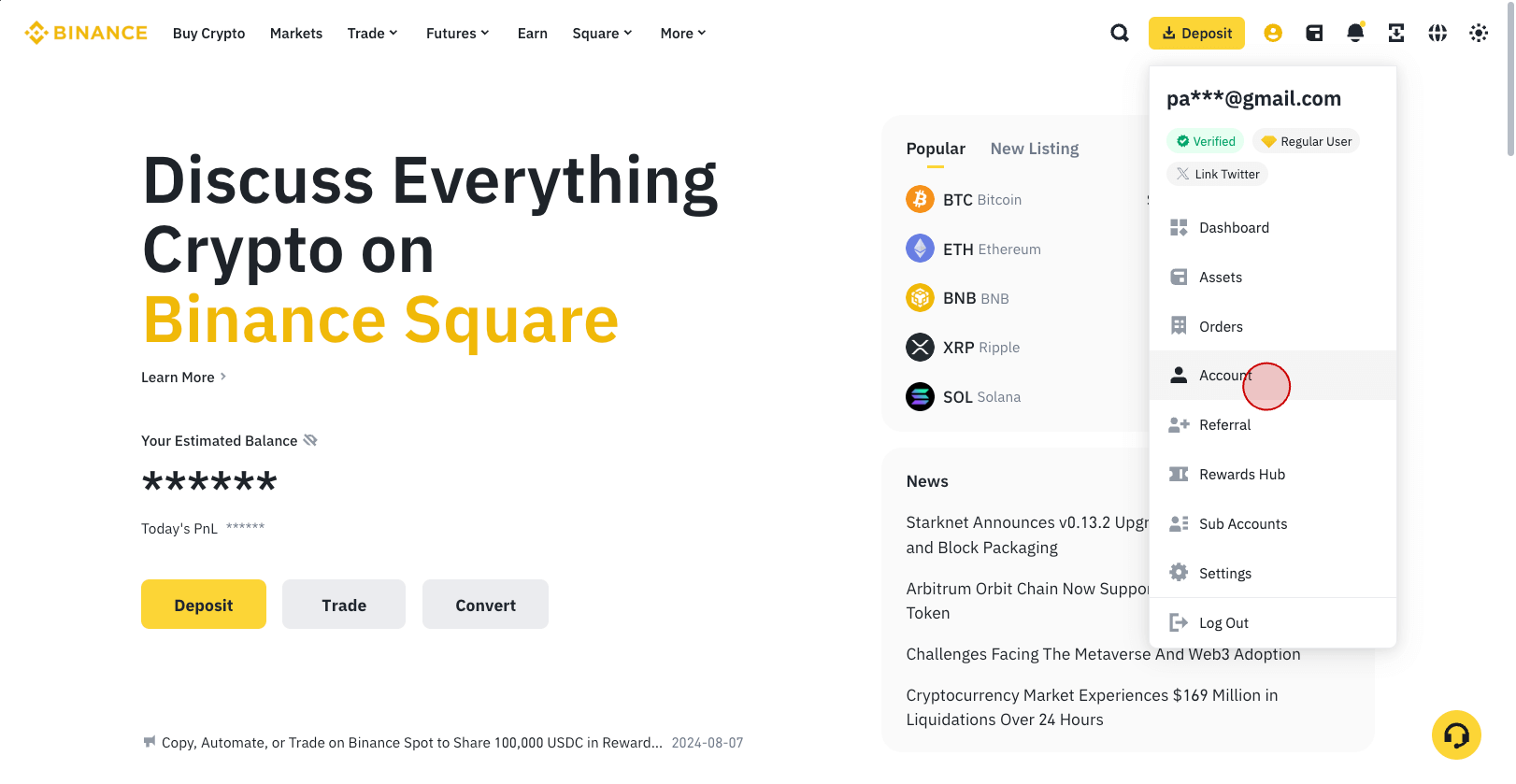
-
Go to "Account".
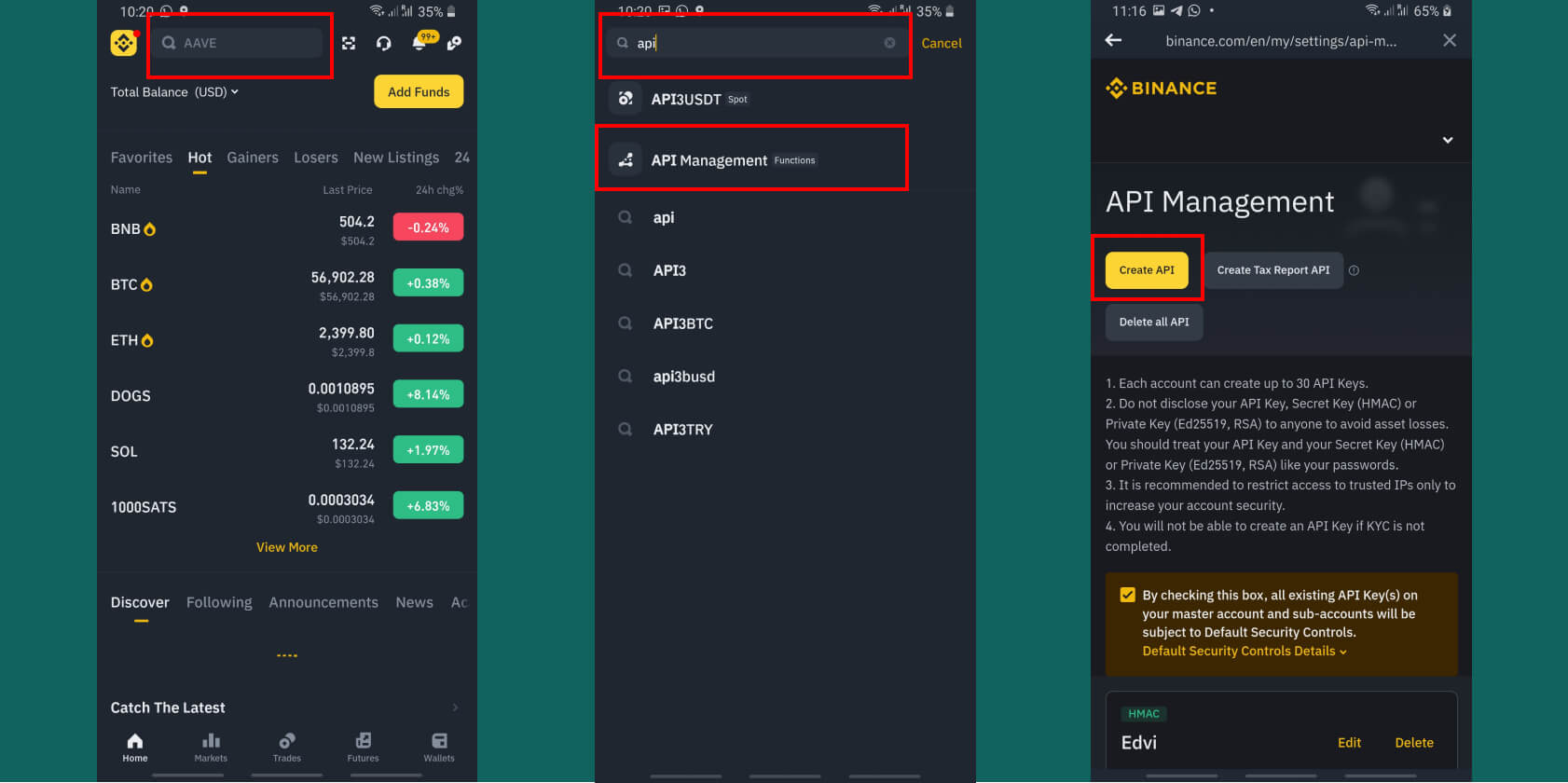
For mobile application.
-
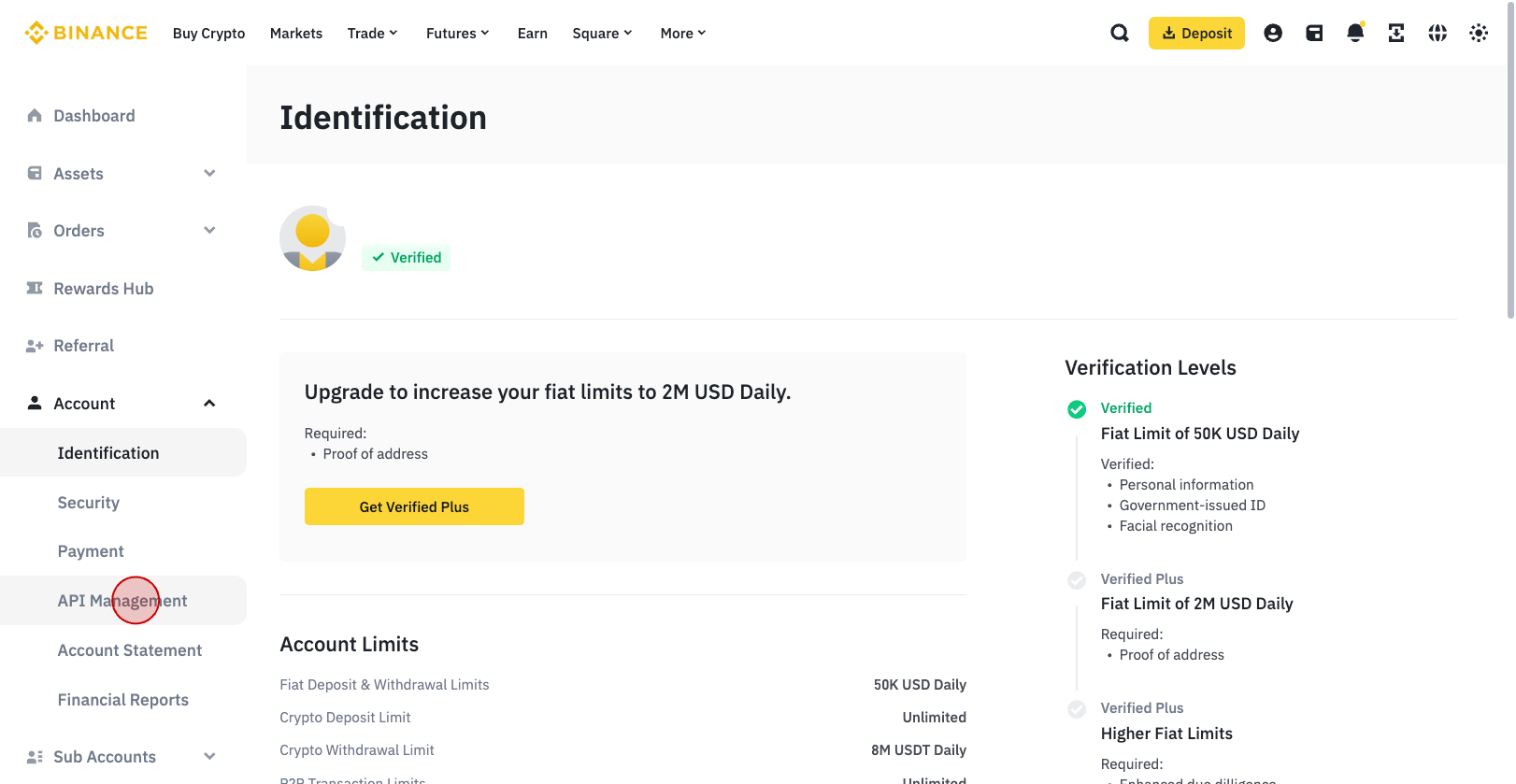
Select "API Management".
(Or go directly to https://www.binance.com/en/my/settings/api-management)
-
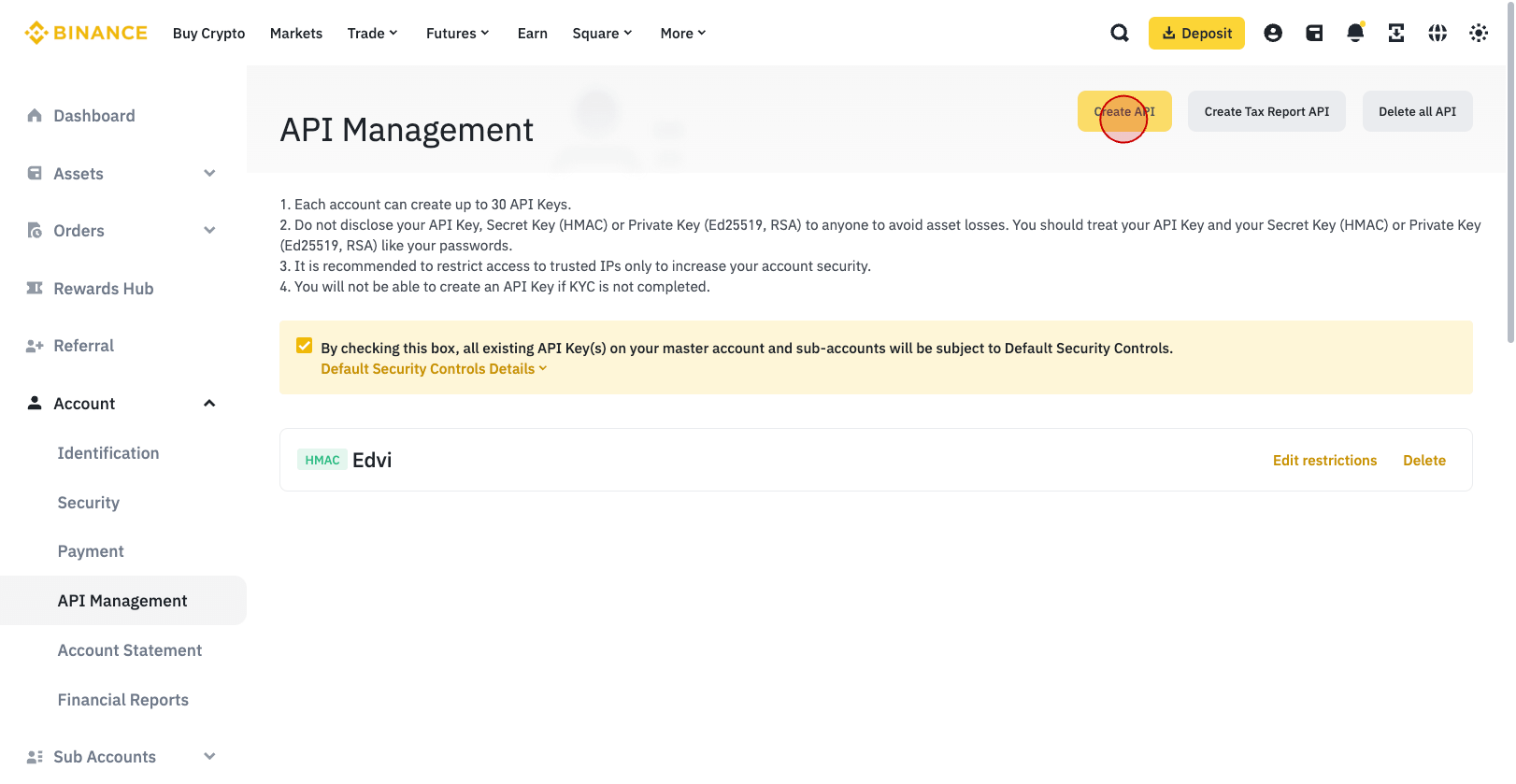
Click "Create API".
-
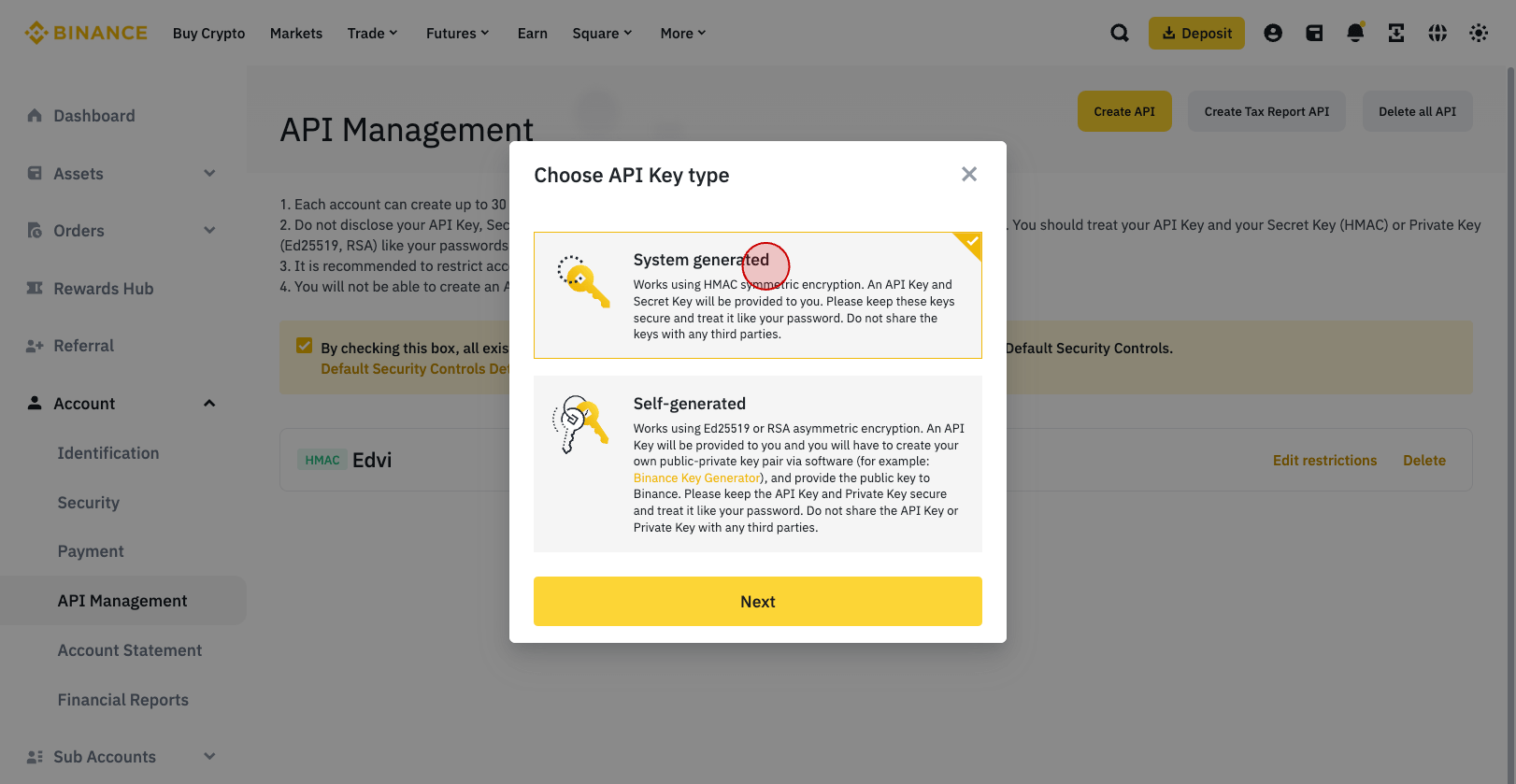
When asked for the type of keys, select the first option "System generated".
-
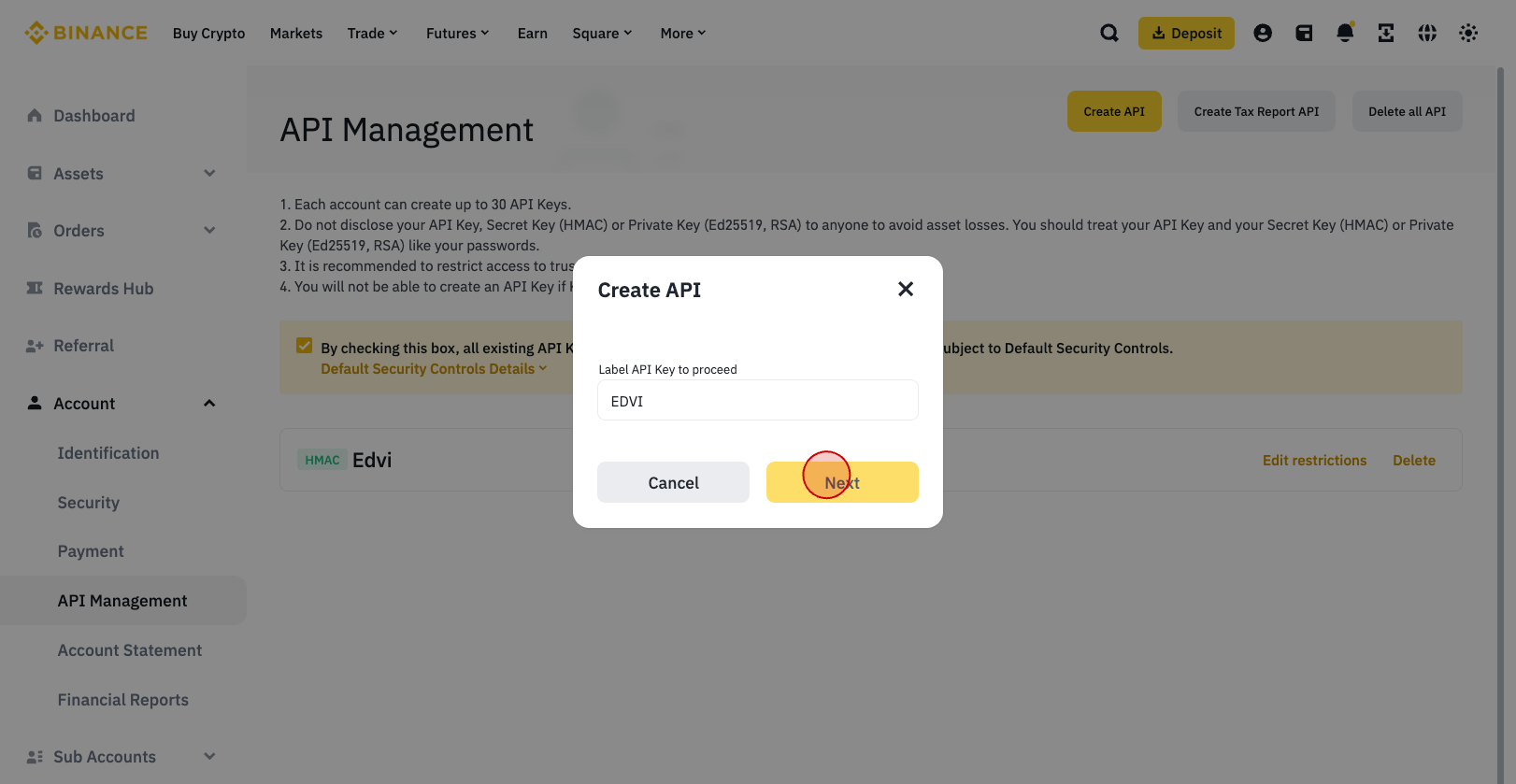
Then assign any name to the key.
-
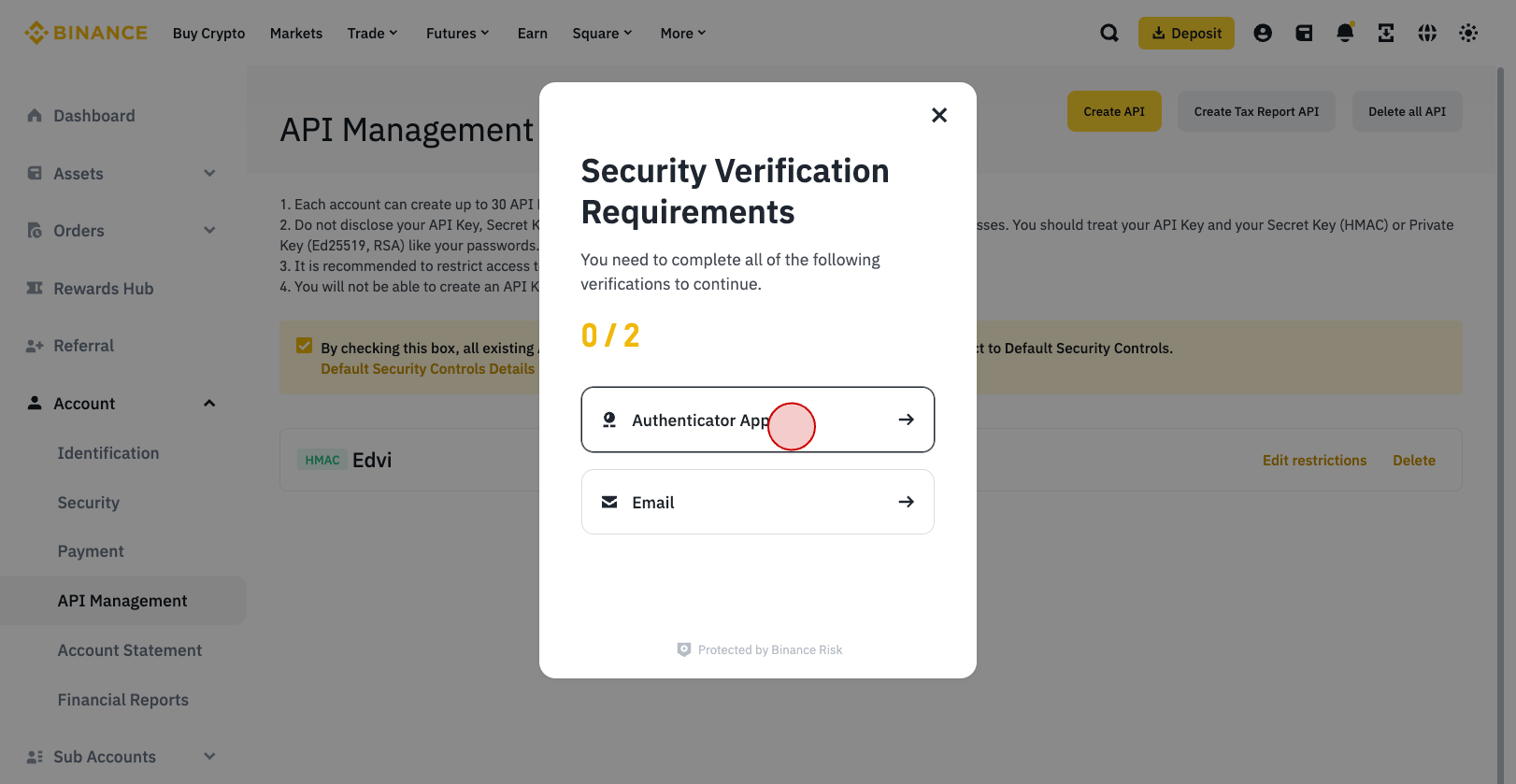
Confirm the creation of the key by entering the 6-digit 2FA code from Google Authenticator.
-
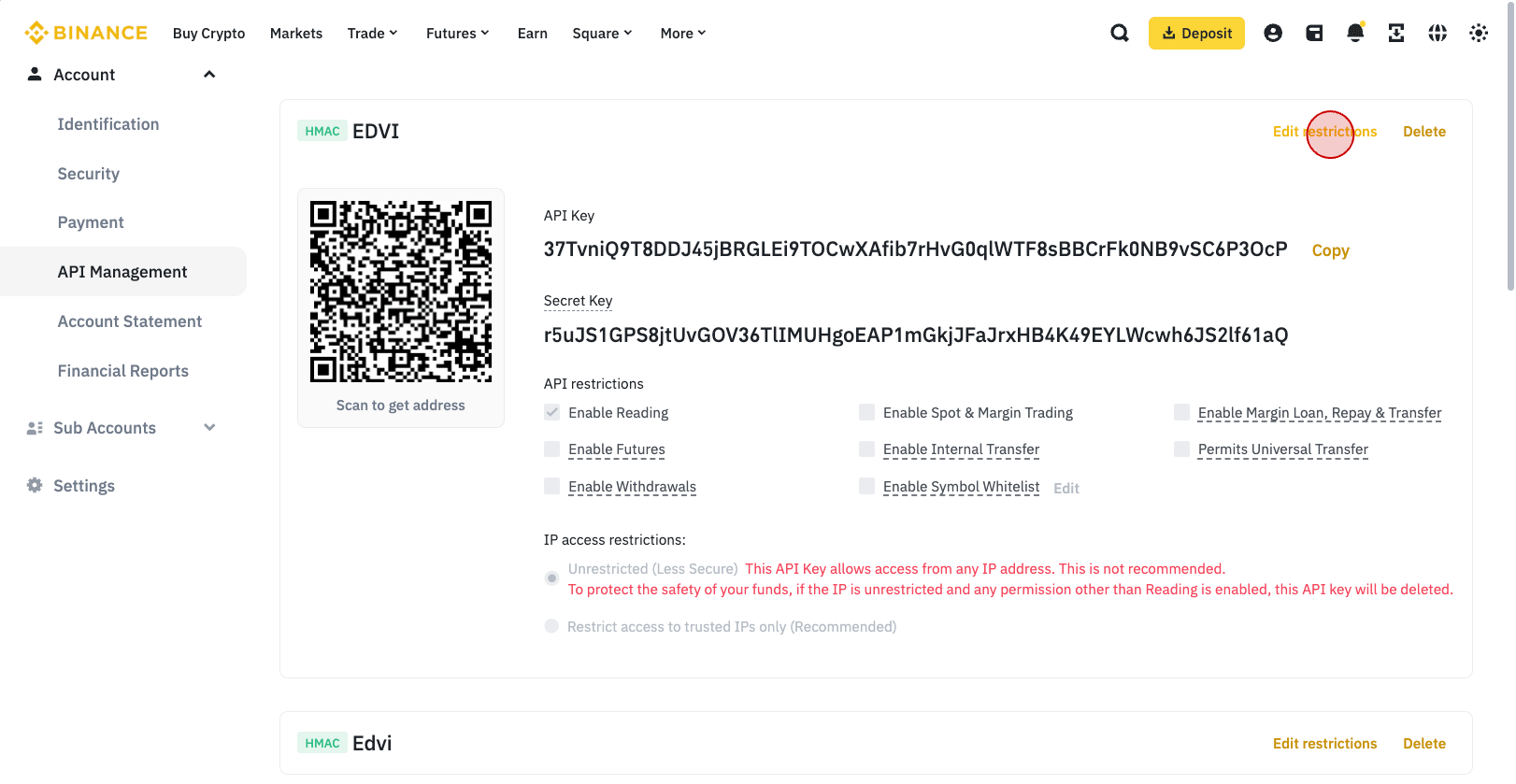
You will receive an API key consisting of two lines (API Key and Secret Key). Save both lines in a notebook or any other text editor!
Now we need to set up access by IP address, from which trading will be conducted. This restriction will make the API key secure even if it is obtained by third parties!
Click on "Edit restrictions" in the upper right corner.
-
Then click "Restrict access to trusted IPs only (Recommended)" and paste the following IP addresses:
45.32.17.47 139.180.196.82 167.179.110.73 45.76.193.172 108.61.250.99(you can paste them all at once, not one by one). Confirm.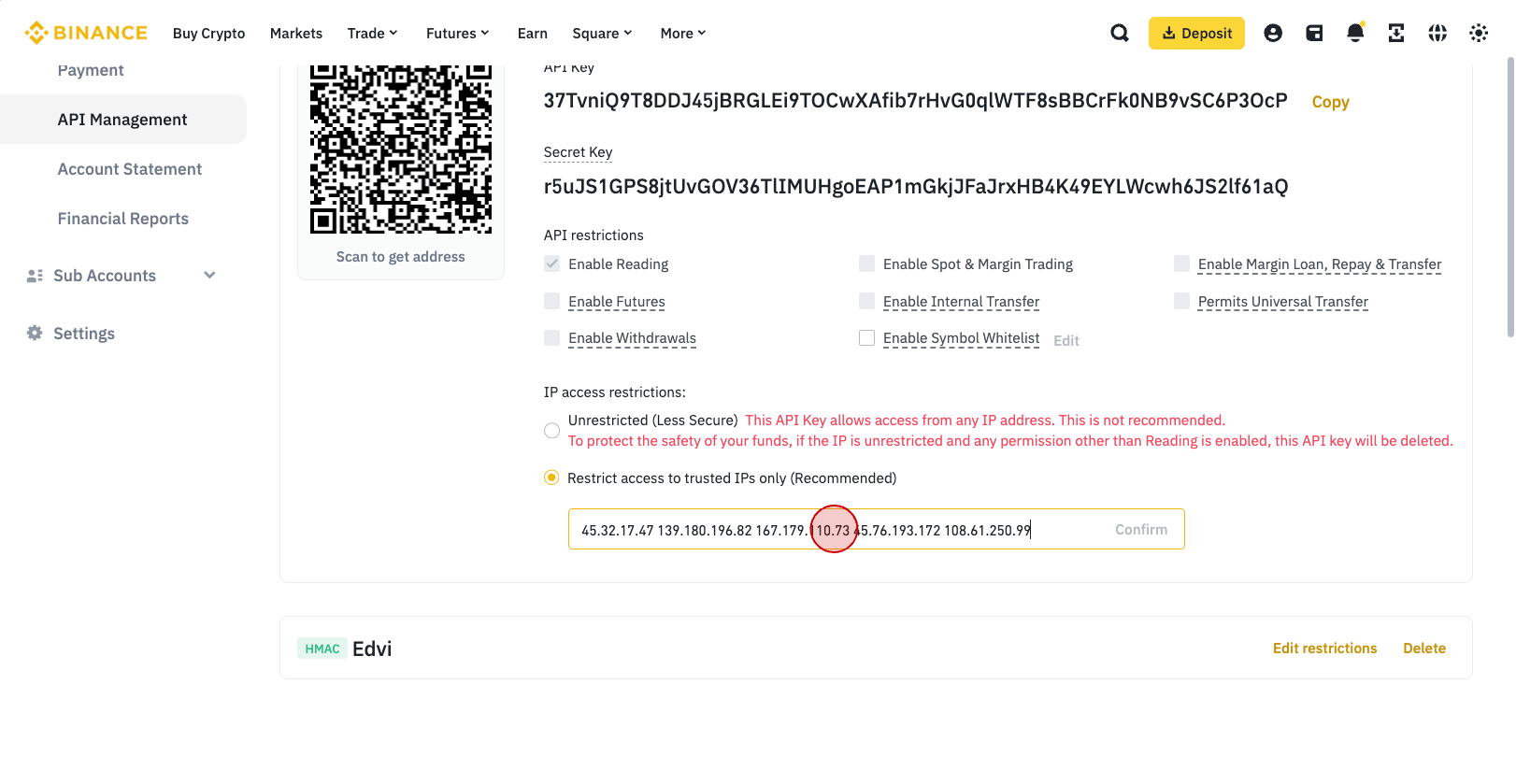
-
Immediately after that, enable futures trading by clicking "Enable Futures".
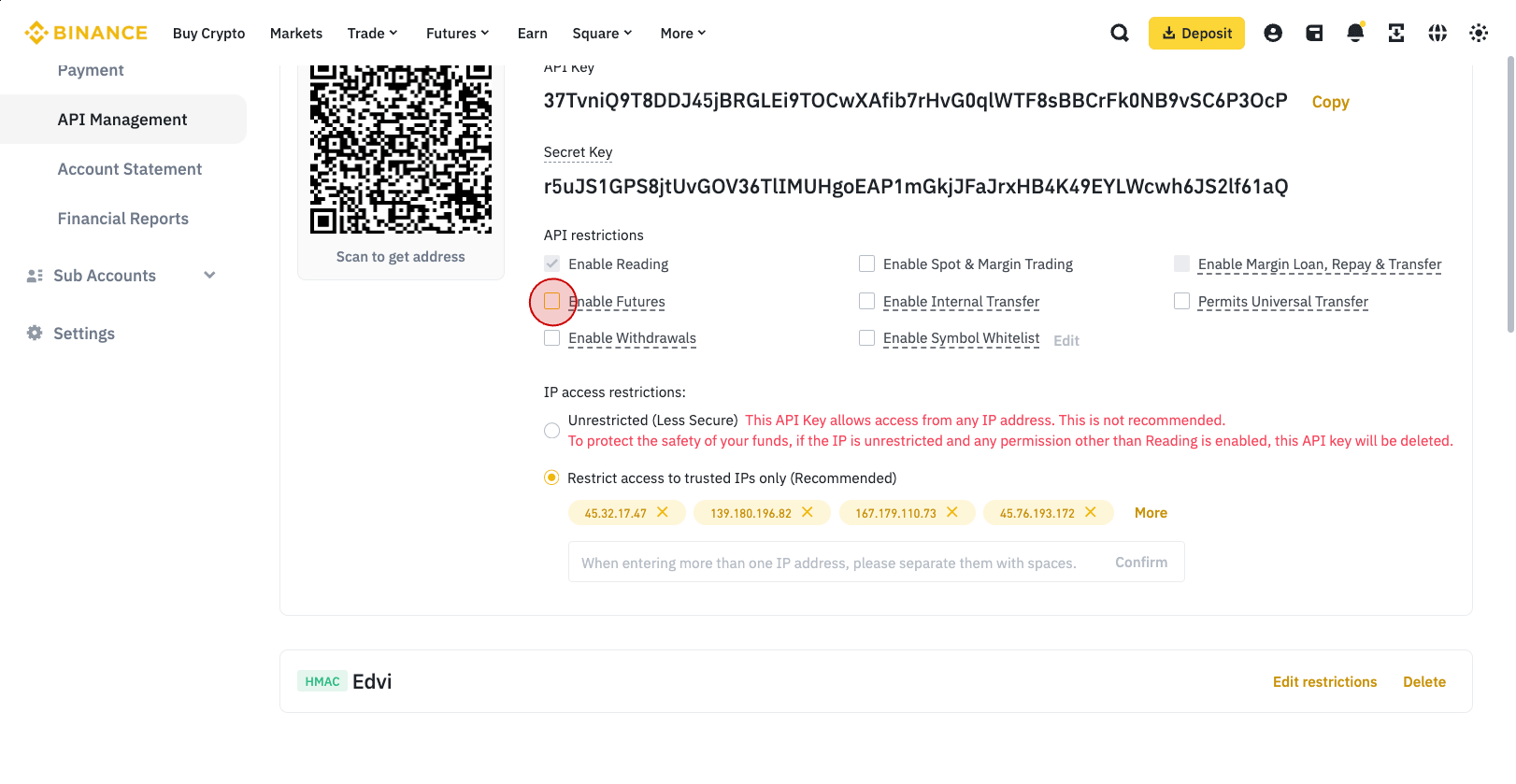
-
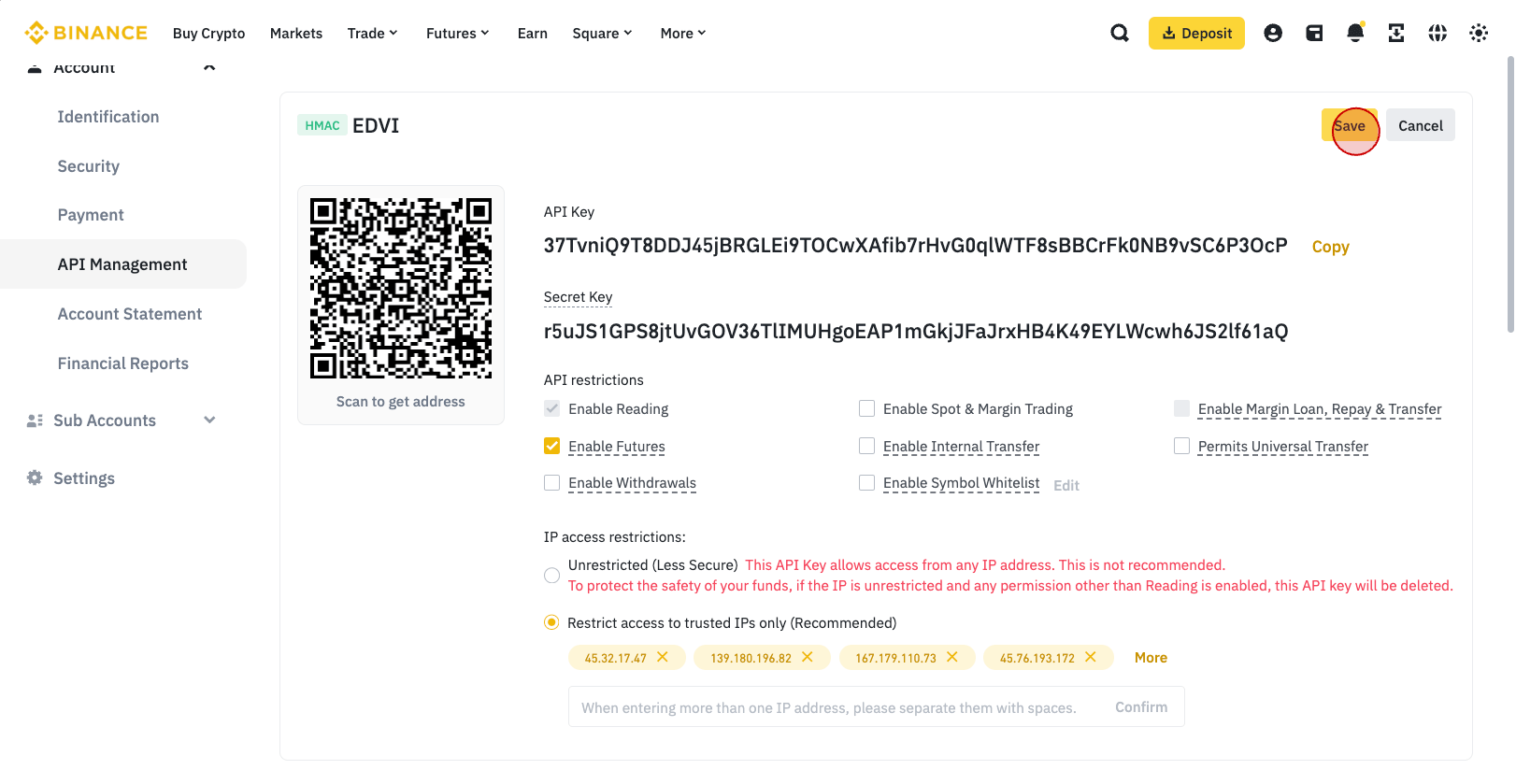
Click "Save".
Creating a trading API key on ByBit
API key allows remote trading on the investor's account without access to funds.
- Log in to your Bybit account www.bybit.com
-
Your account must be secured with two-factor authentication (2FA).
You can enable it on the "Account and Security" page: https://www.bybit.com/app/user/security
If you already have 2FA enabled, skip this step.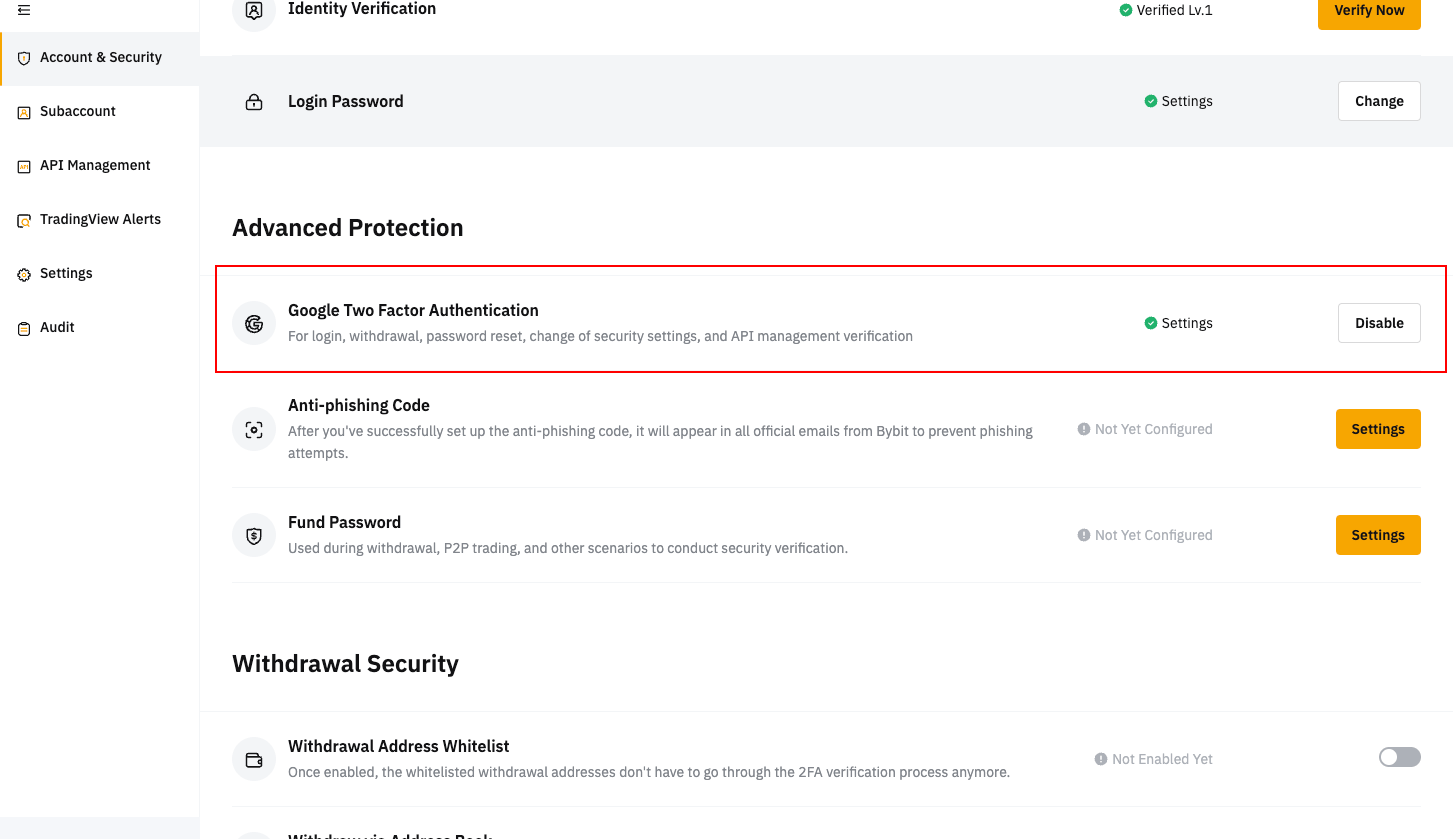
-
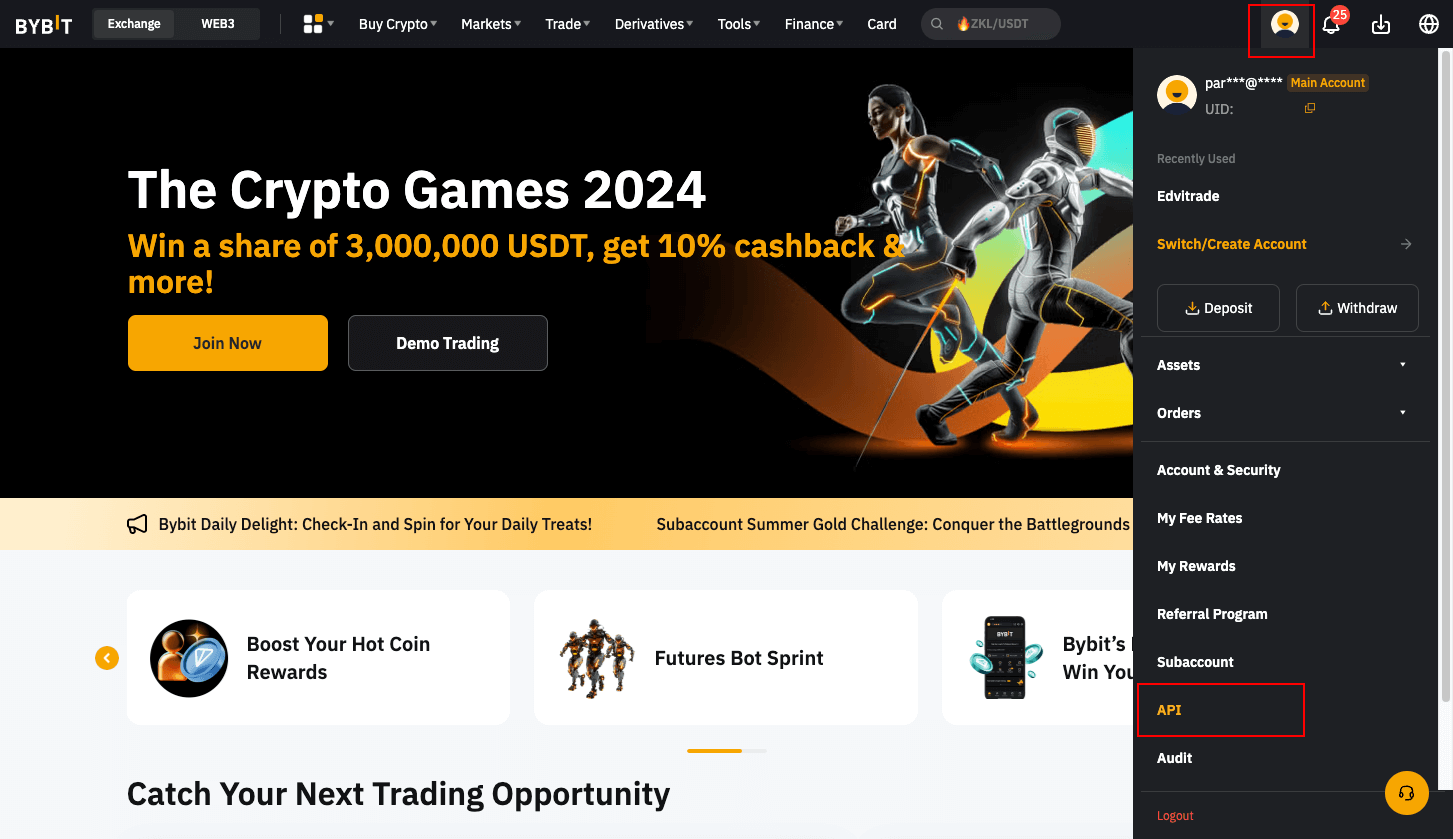
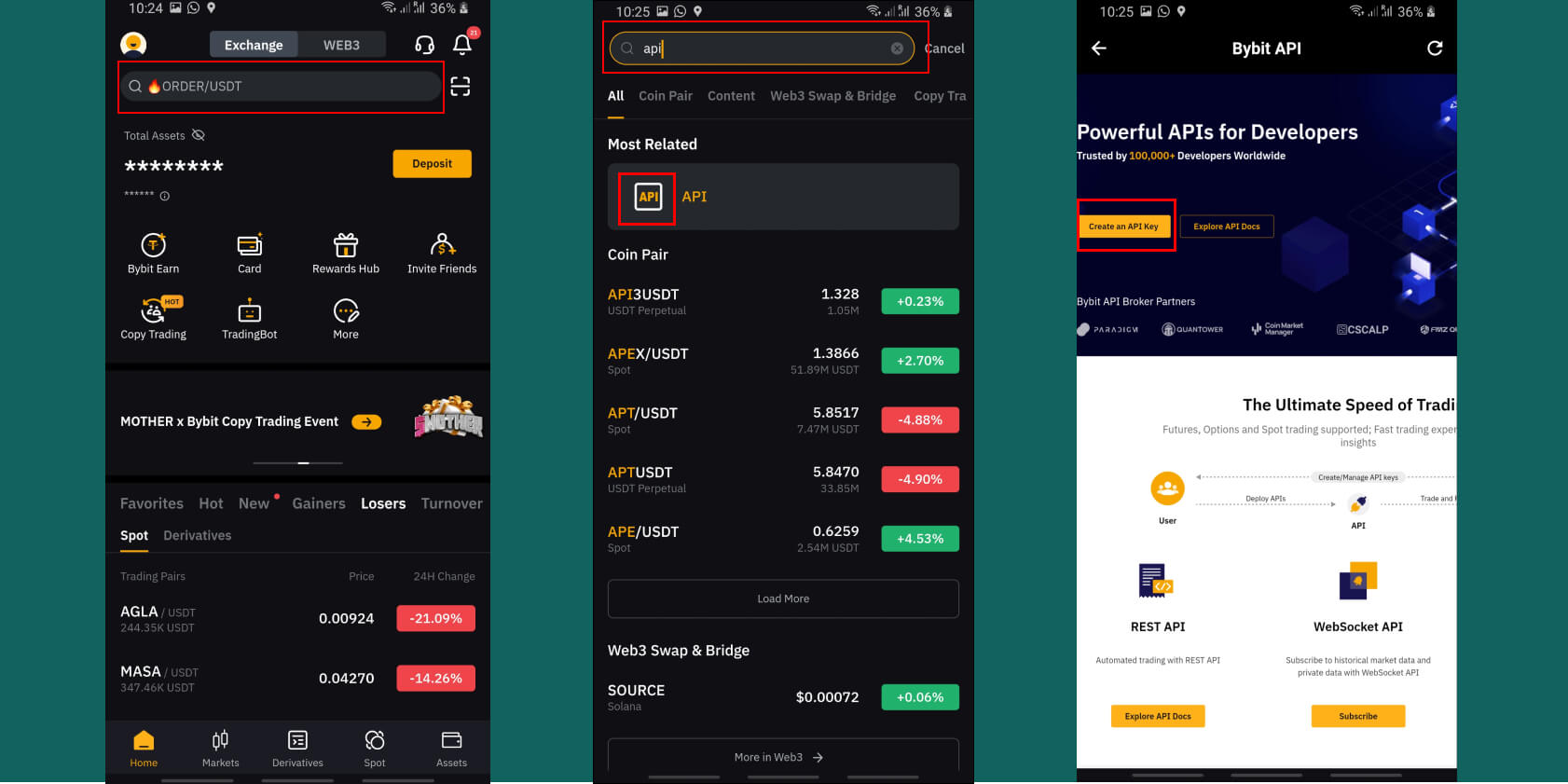
Click "Profile" > API.
For mobile application.
-
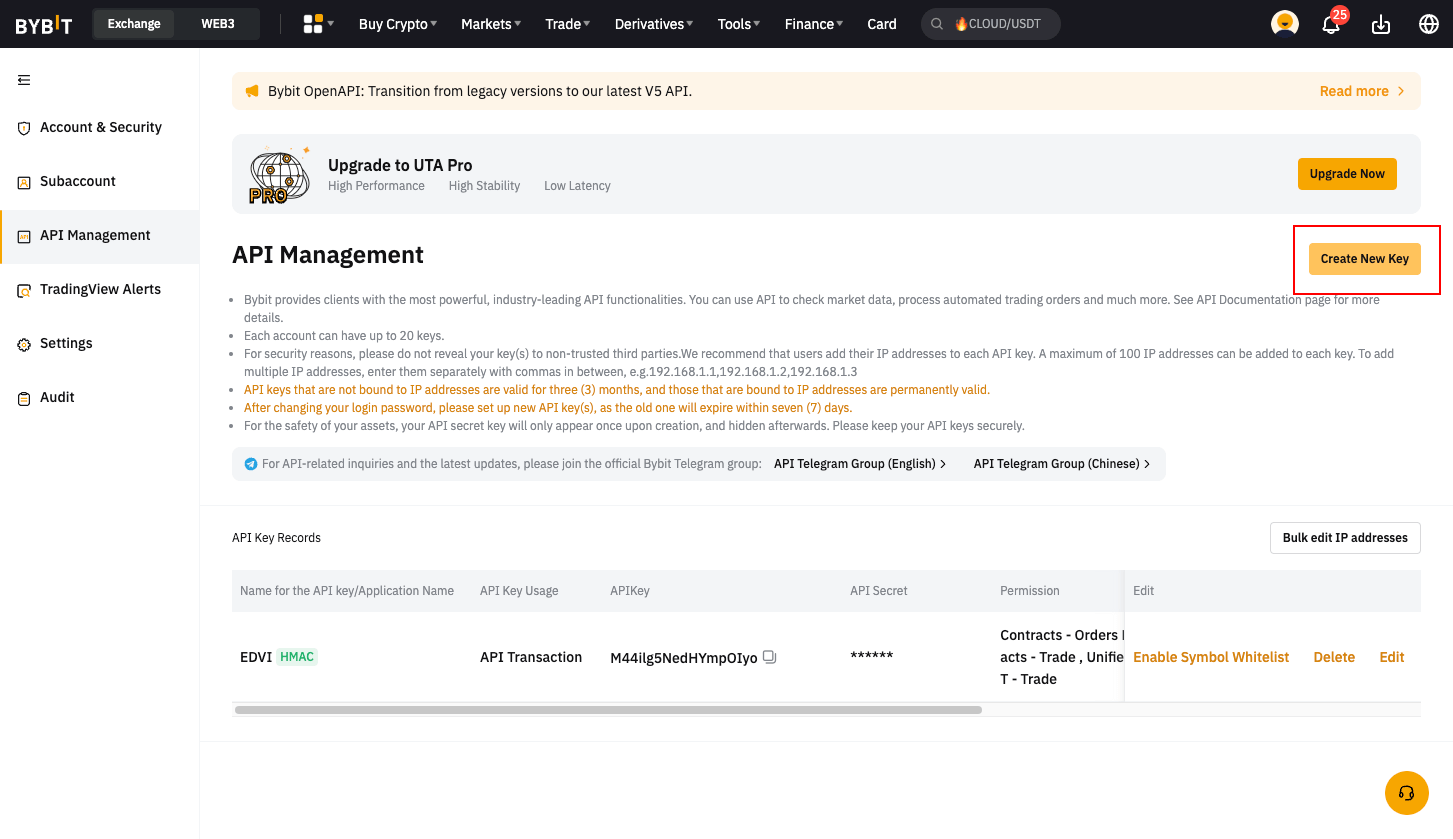
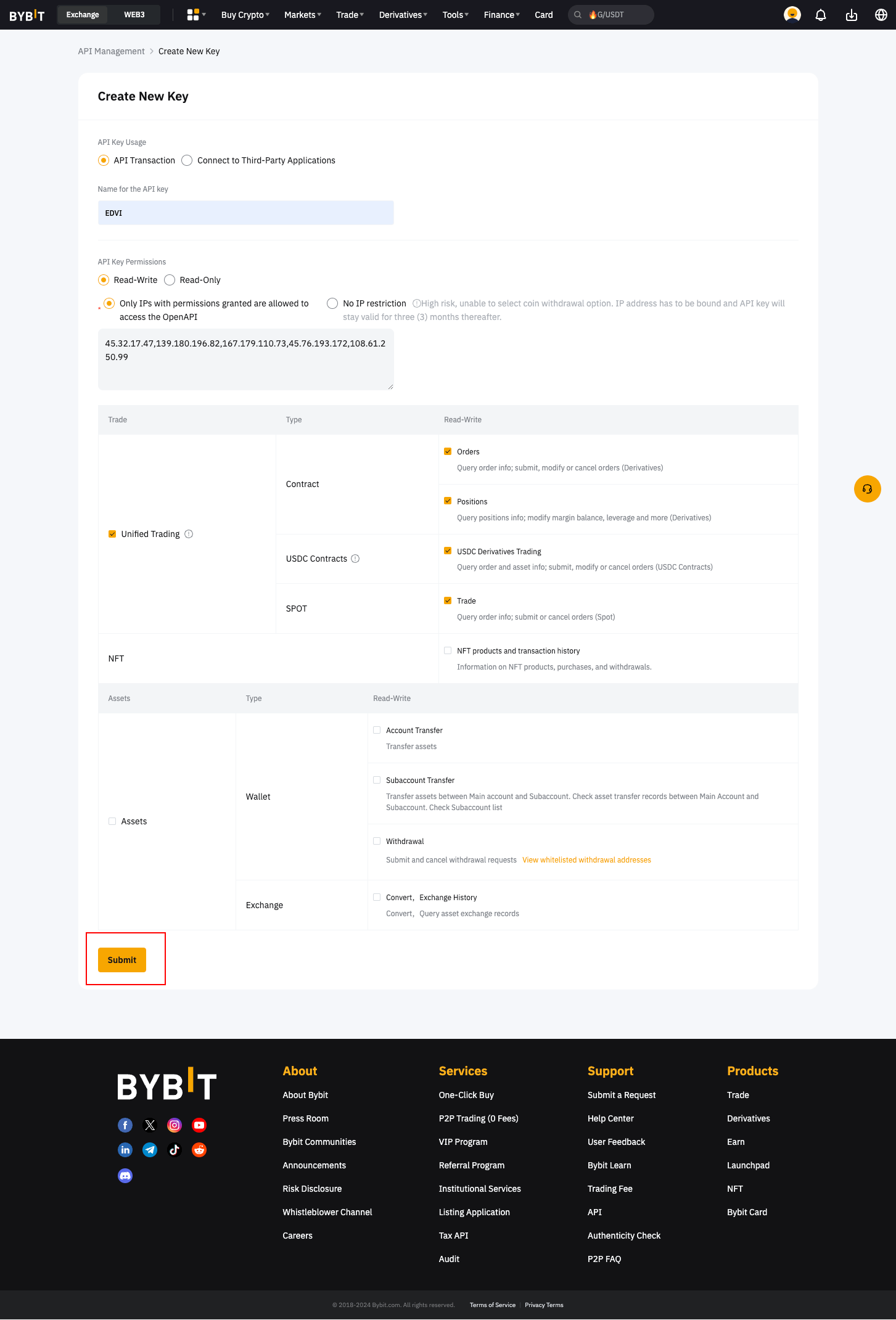
Click "Create new key".
-
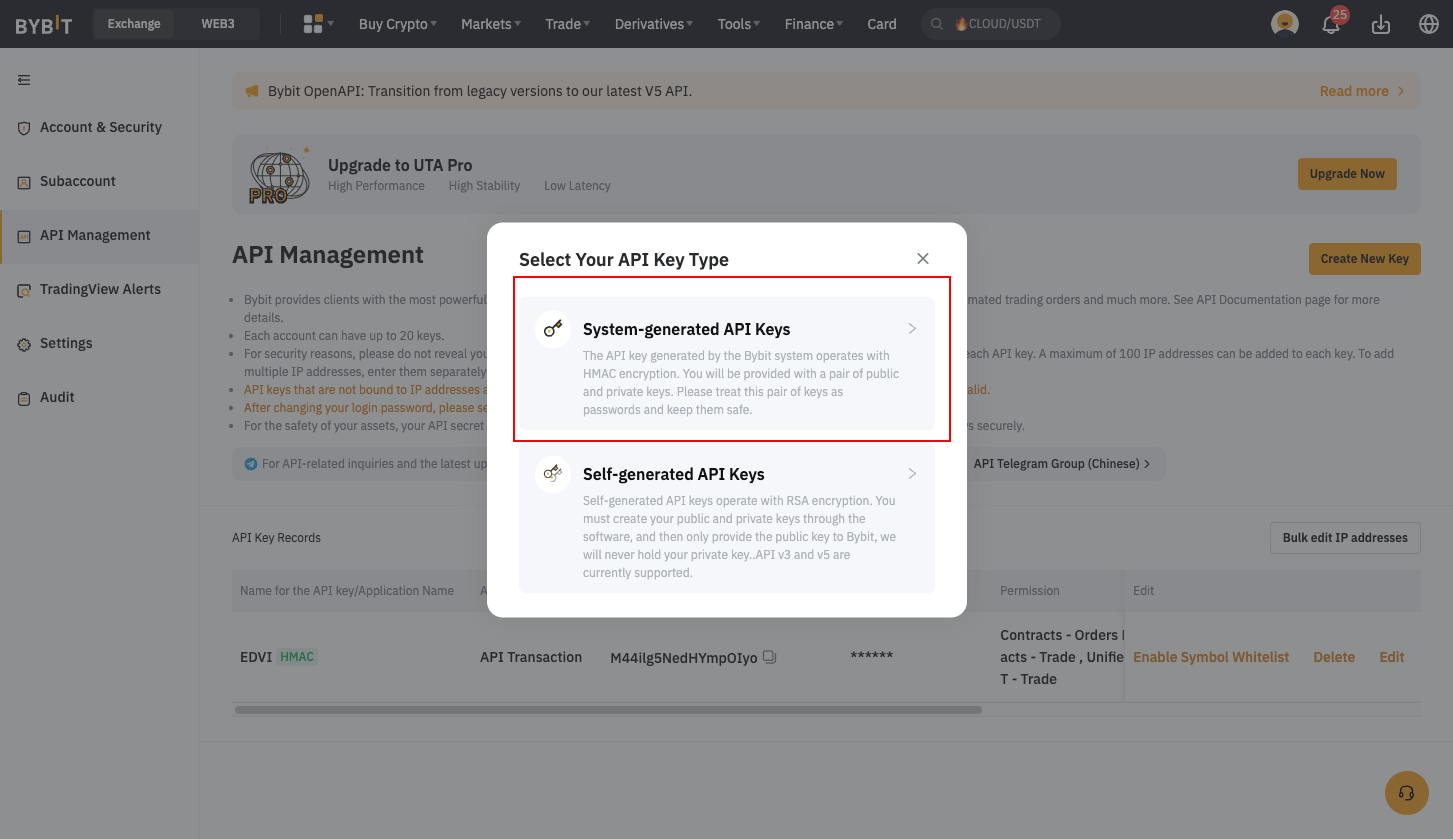
Select the key type "API keys generated by the system".
-
In the key settings, set:
- API key usage - API transaction.
- API key name - any, of your choice.
- Permissions - Read and Write; OpenAPI access is only available to IPs with special permission.
Enter the IP addresses needed for trading in the box below:
45.32.17.47,139.180.196.82,167.179.110.73,45.76.193.172,108.61.250.99 - Trading - Standard account.
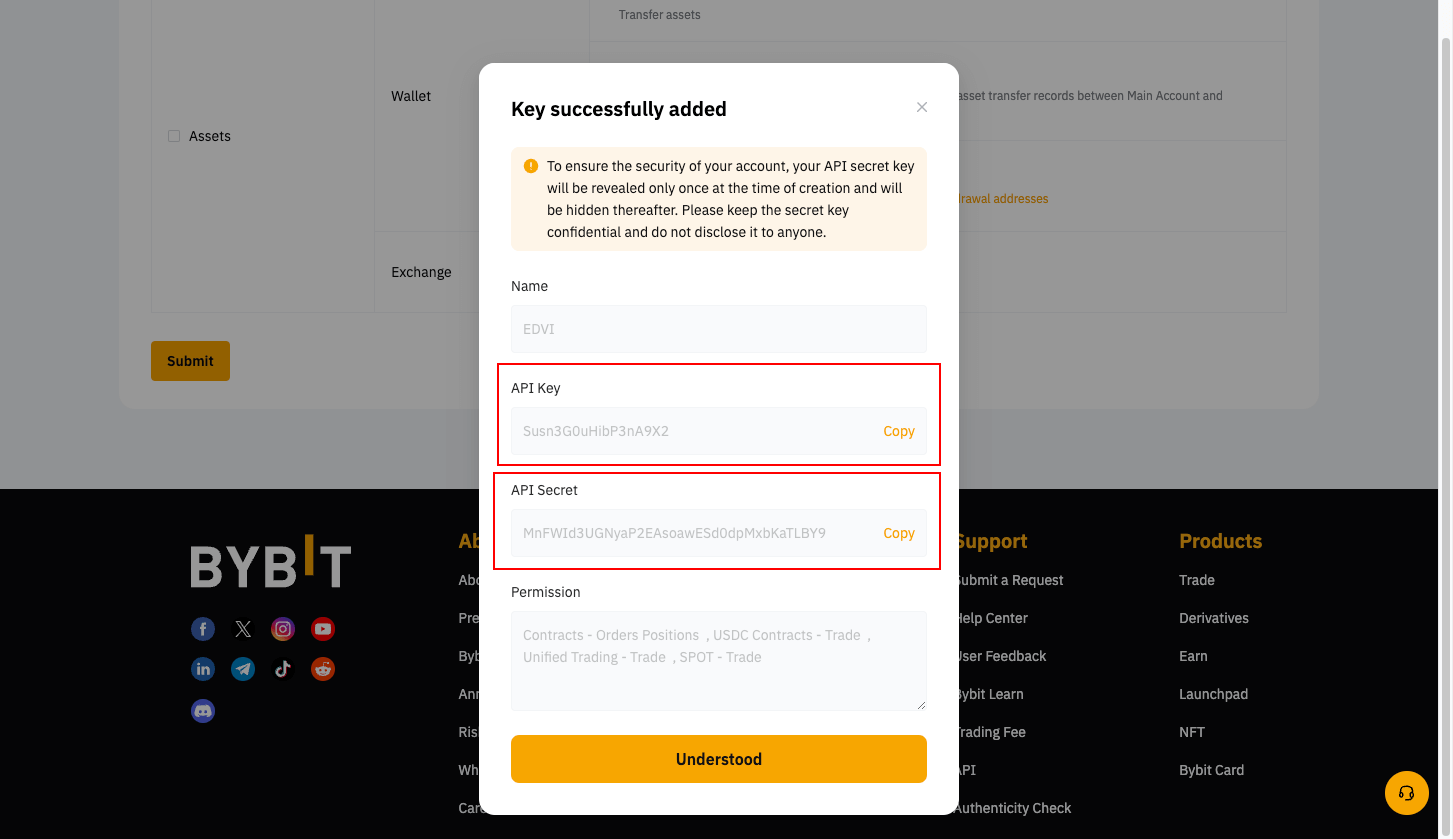
- Complete the security check by entering the code from the email and the 2FA code.
- Save the received key on your computer (e.g., in a Notepad file).
Creating a trading API key on OKX
API key allows remote trading on the investor's account without access to funds.
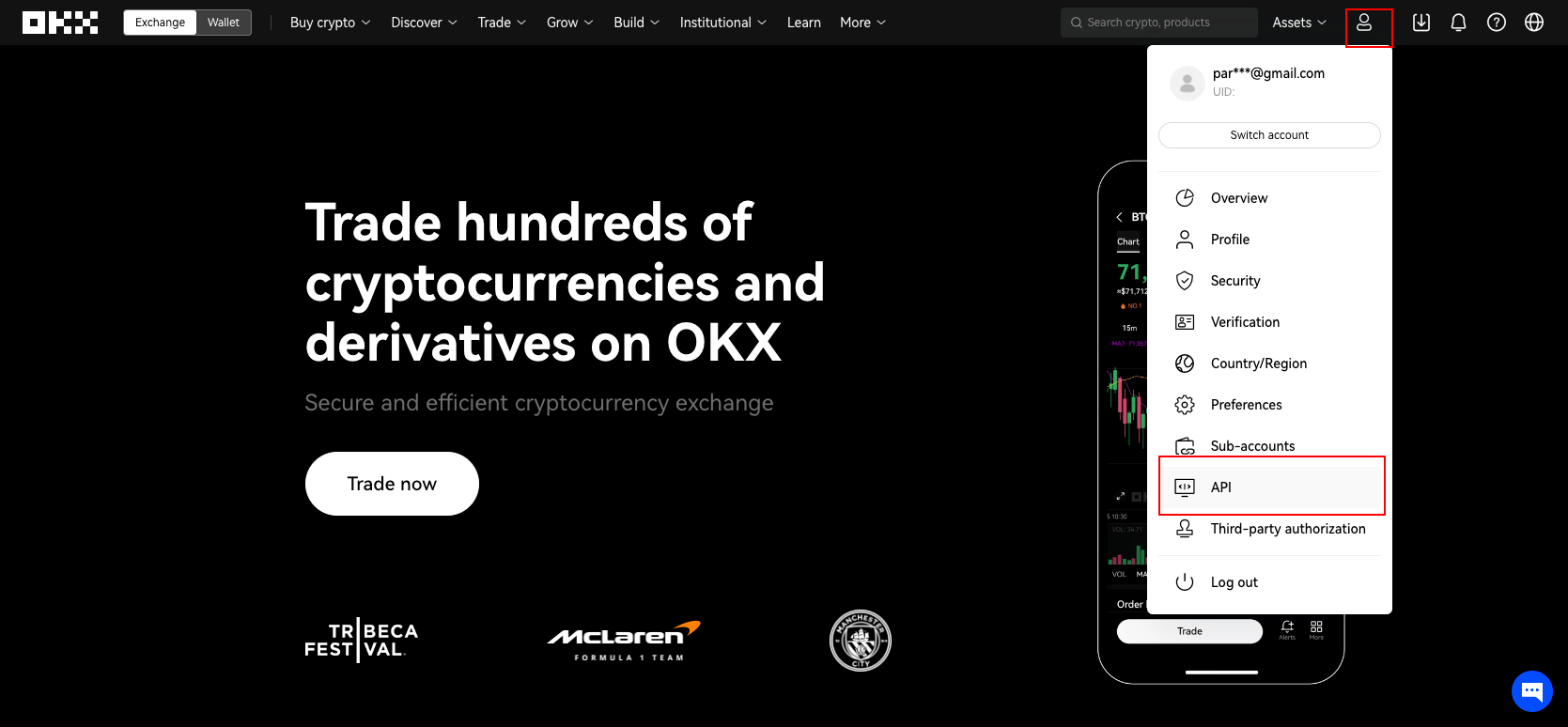
- Log in to your OKX account www.okx.com
-
Click "Profile" > API.
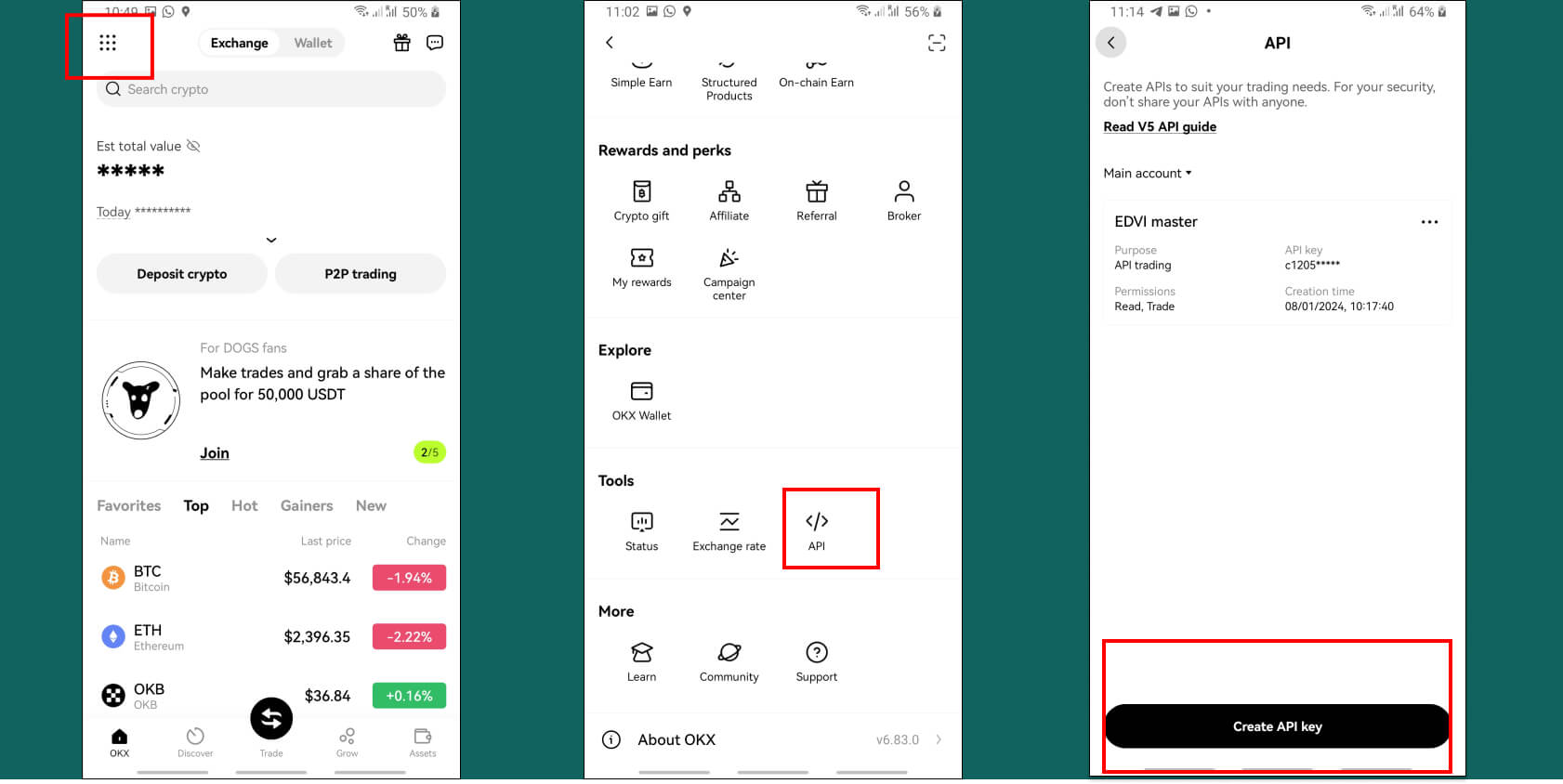
For mobile application.
-
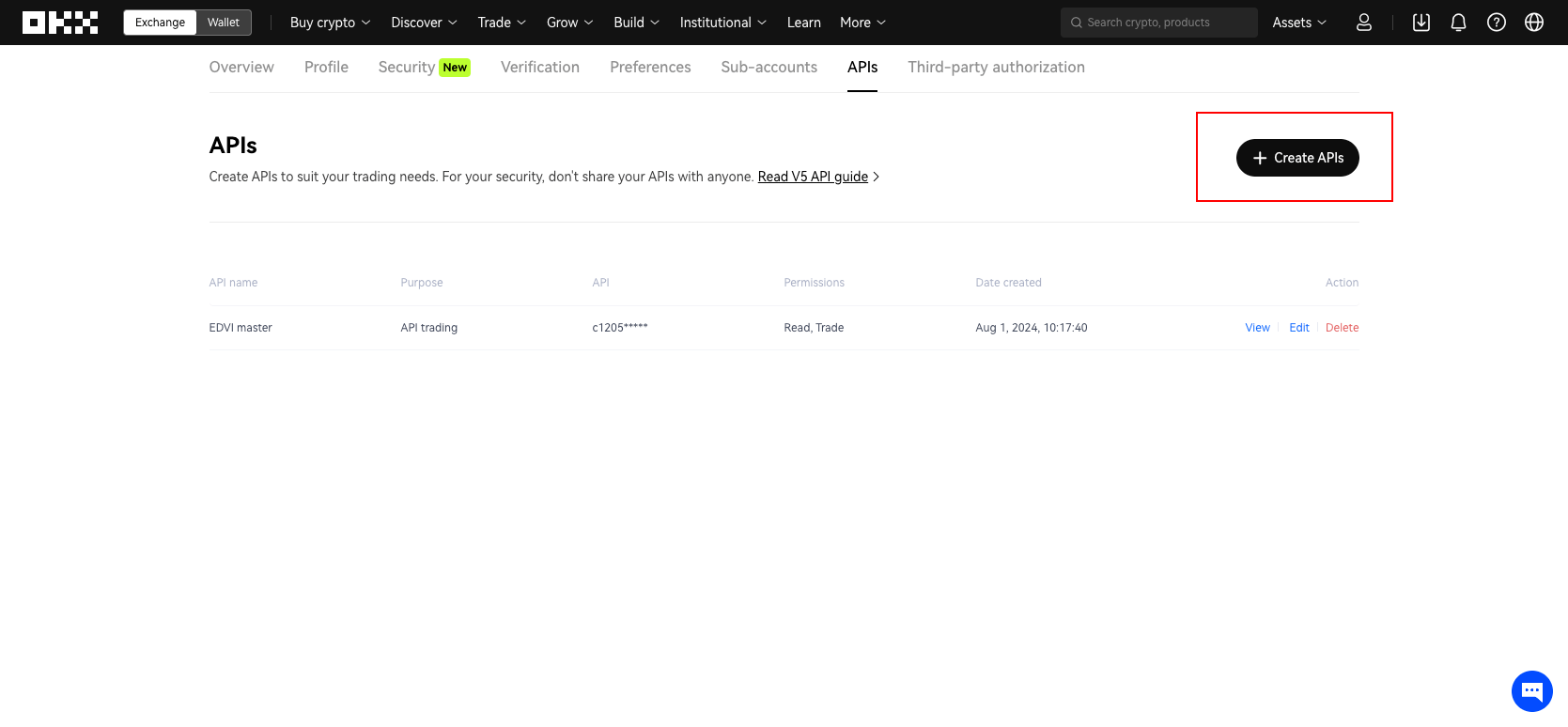
Click "Create APIs".
-
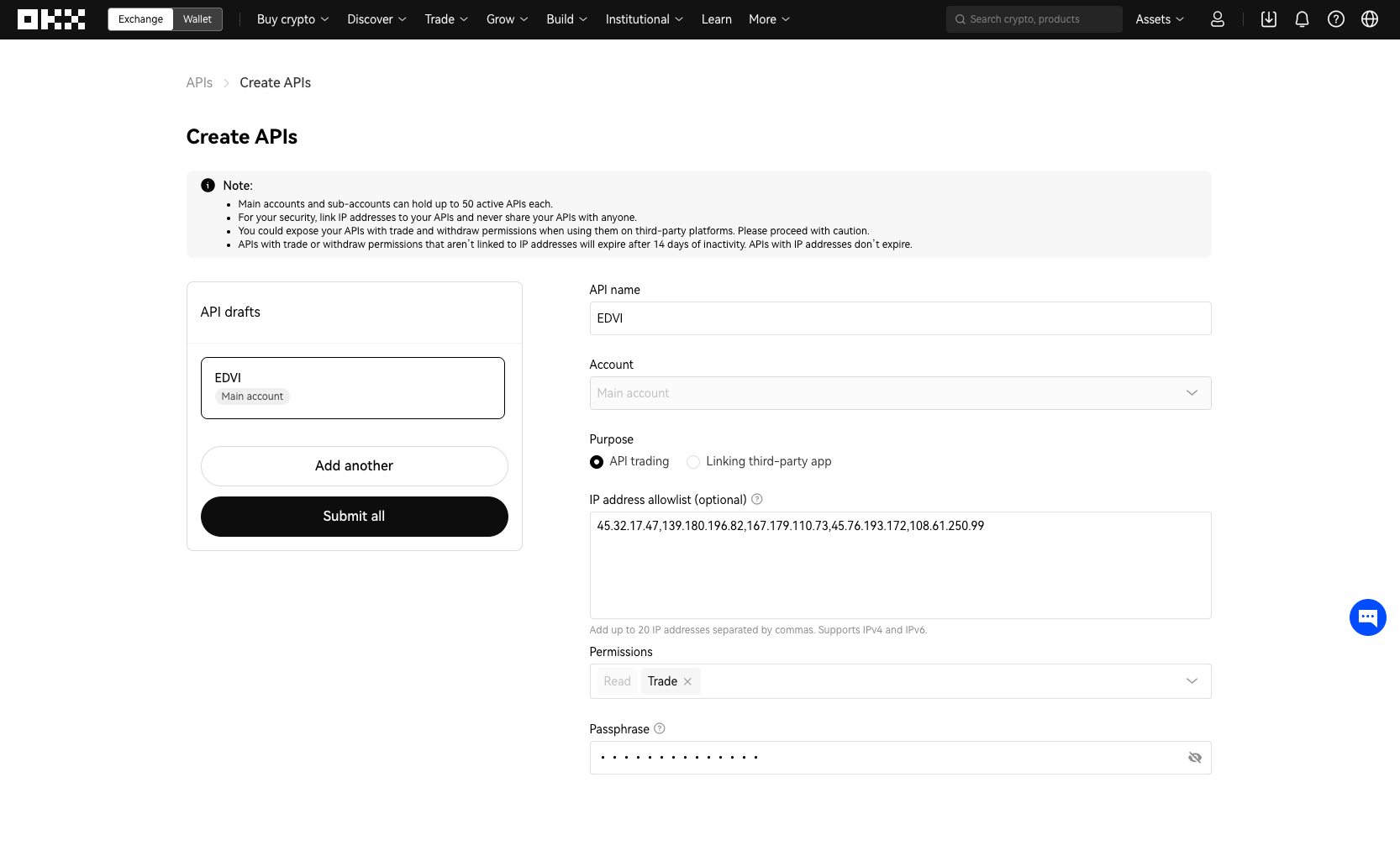
In the key settings, set:
- API key name - any, of your choice
- API key usage - API trading
- IP address whitelist:
45.32.17.47,139.180.196.82,167.179.110.73,45.76.193.172,108.61.250.99 - Permissions - Read and Trade
- Passphrase: Required to view API information and access its interface. Keep your passphrase safe.
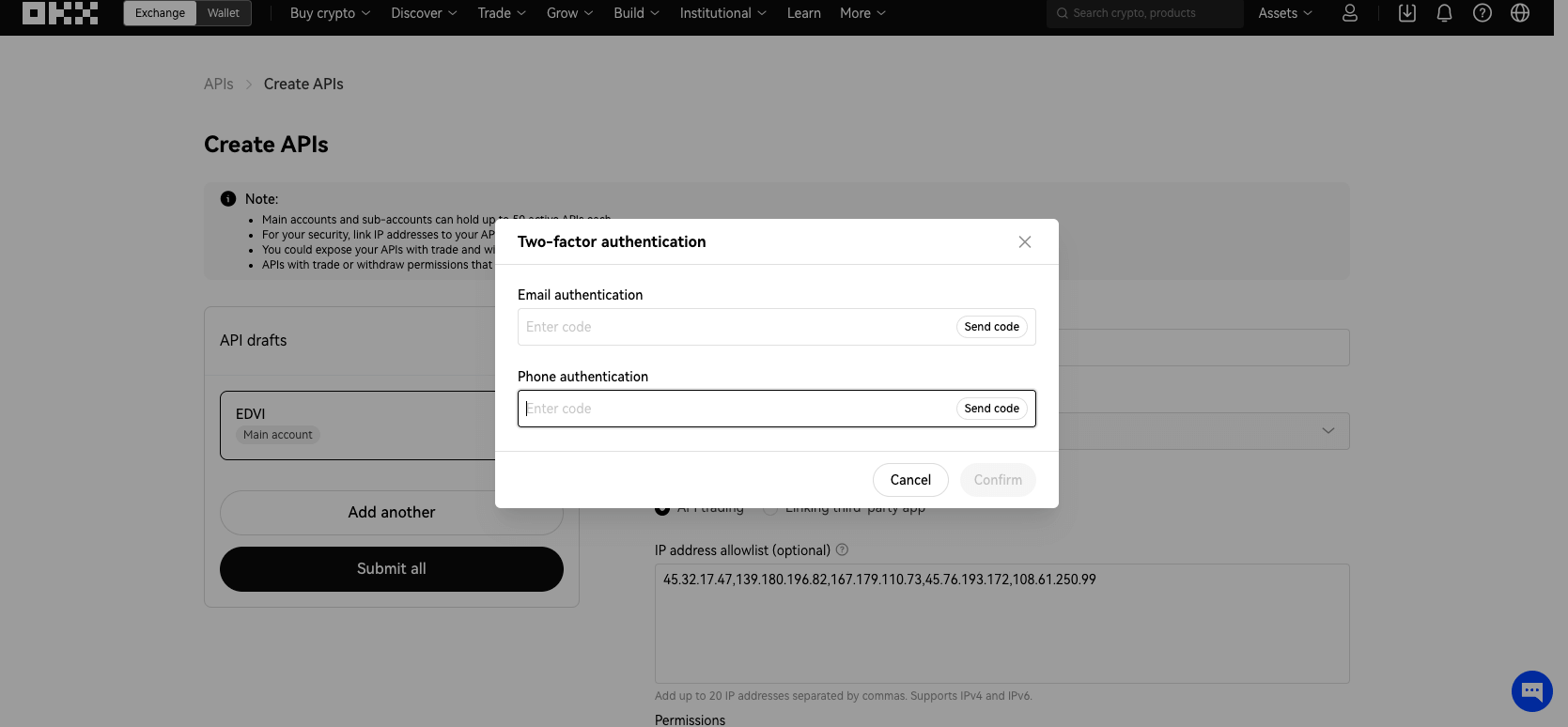
- Complete the security check by entering the code from the email and the 2FA code.
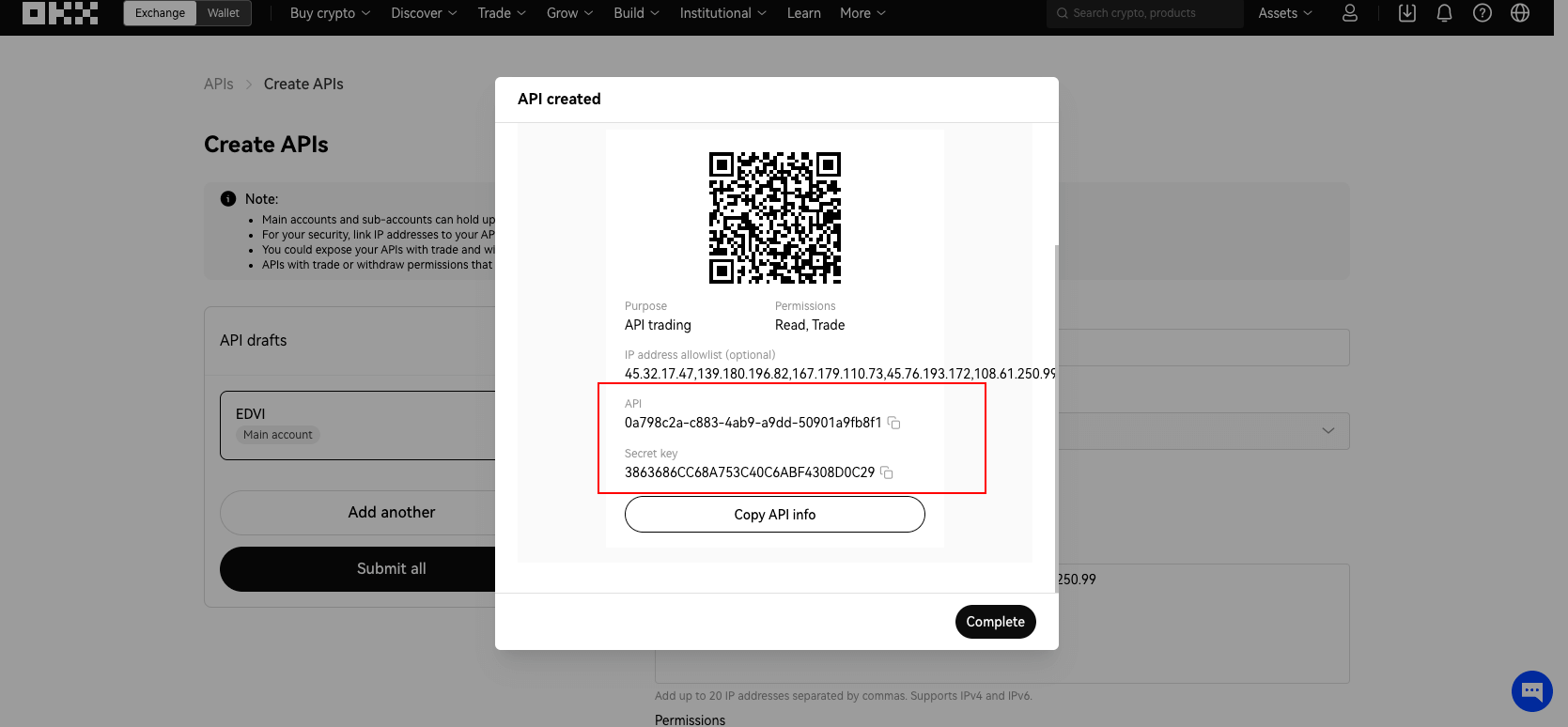
- Save the received key on your computer (e.g., in a Notepad file).
How to deposit funds to start trading?
Our strategies trade exclusively on the futures market.
The futures or derivatives wallet on the exchange is a specialized wallet intended for storing and managing funds used for trading derivative financial instruments such as futures and options.
-
If you already have USDT in your spot wallet, skip this step.
If you need to buy USDT, all exchanges provide the same mechanism. Go to your main wallet and click "Deposit". You can make a deposit via crypto transfer or bank card.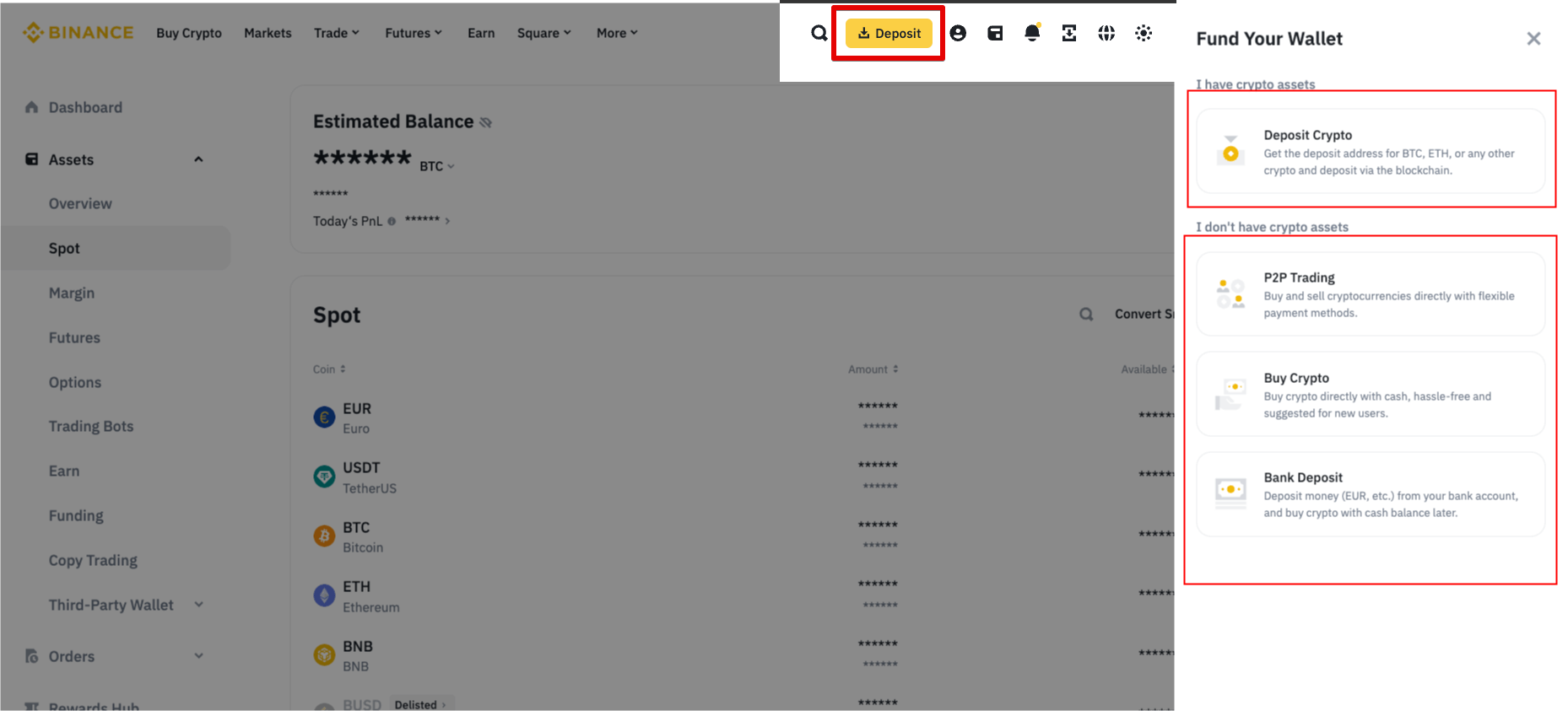
-
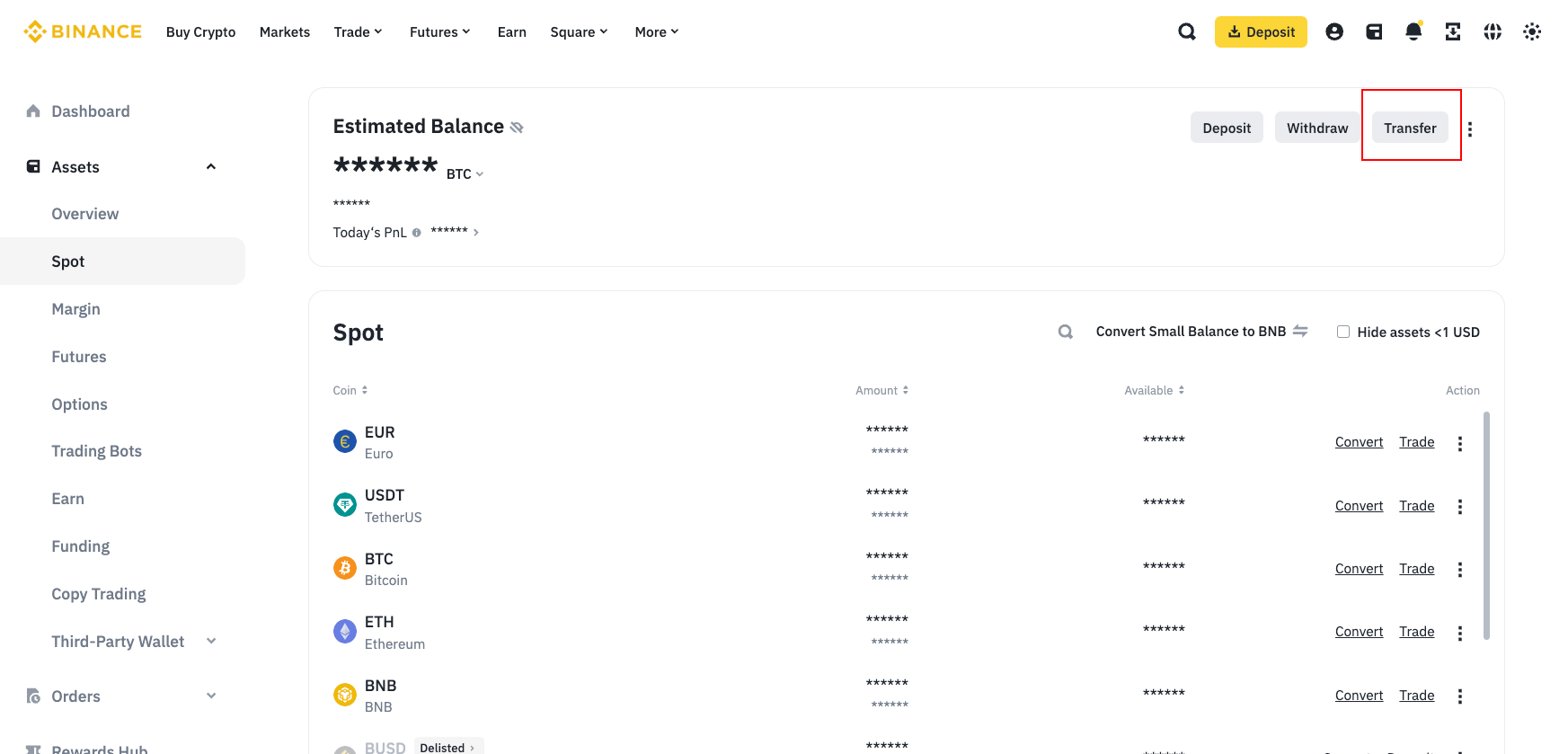
You need to transfer your funds to the futures or derivatives wallet -> (USDT-M). To do this, click "Transfer" in your wallet.
-
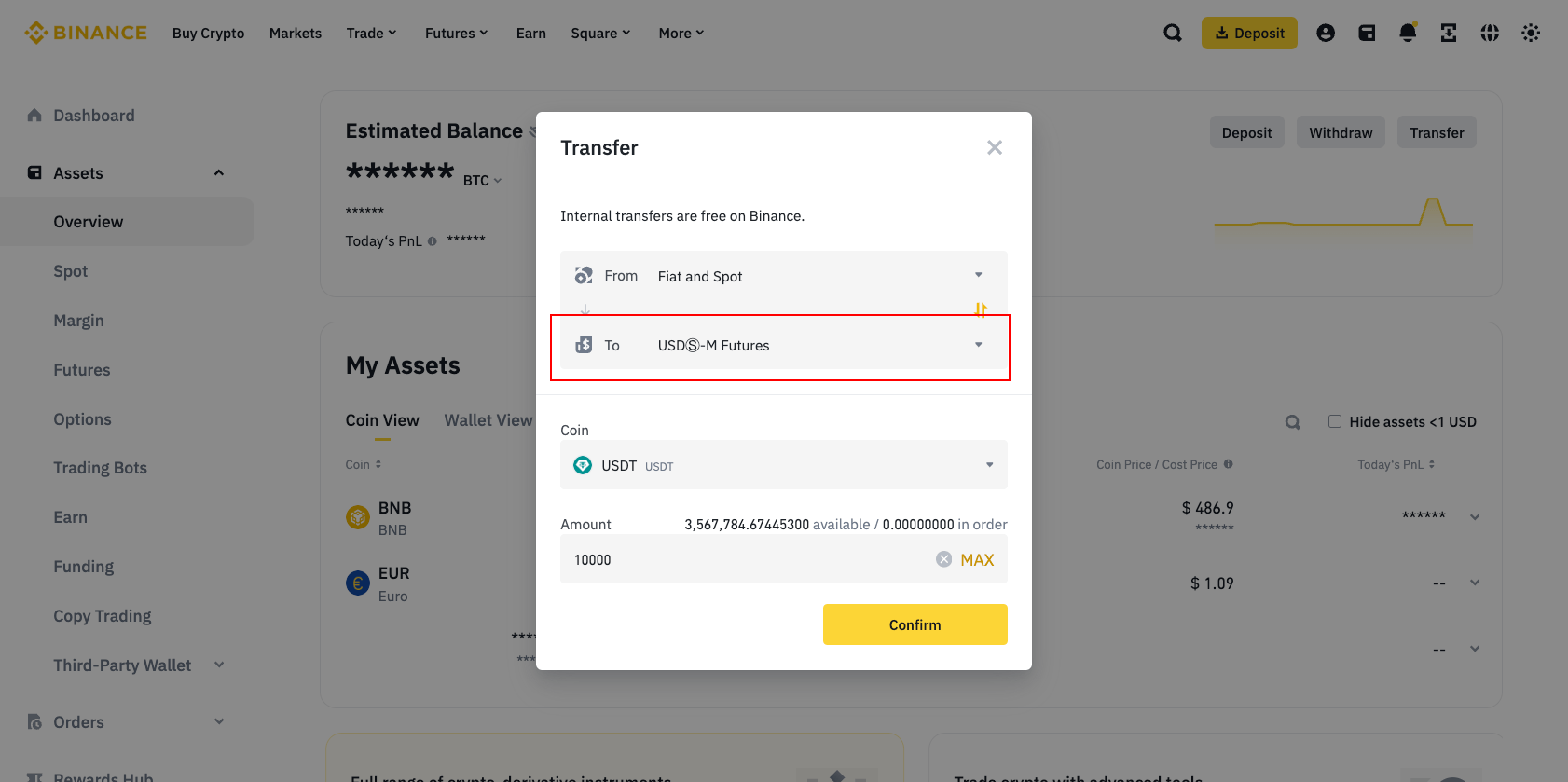
You need to transfer USDT to your futures wallet from your spot wallet or any other available wallet where your funds are located.
-
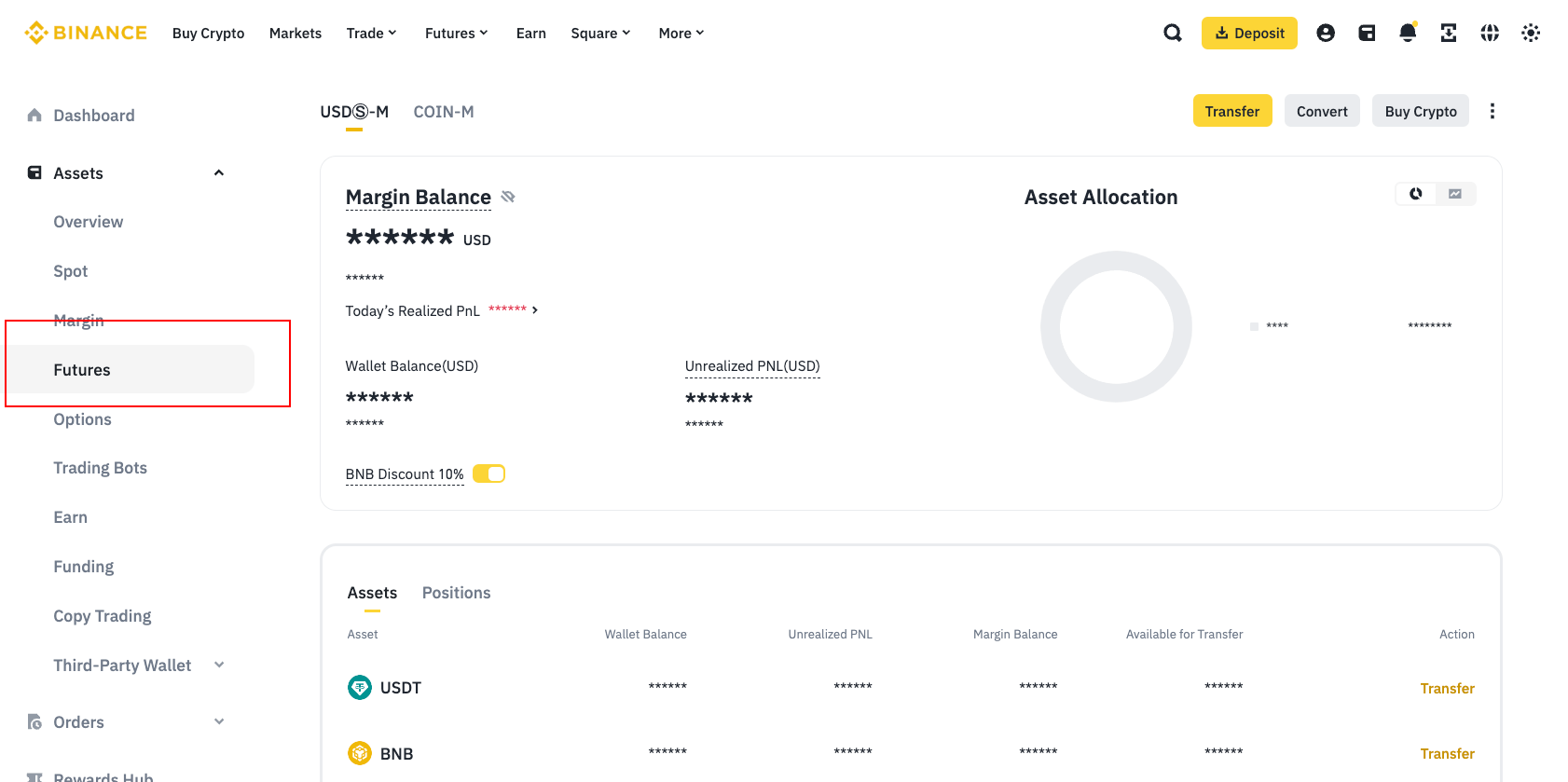
If your funds have been credited to the futures wallet, you have done everything correctly.
Your funds remain on the exchange; we only get access to use them for trading.
How to subscribe to the EDVI plan
- In your EDVI account open Wallet and choose the network for sending USDT: BSC (BNB Smart Chain, BEP20) or TON. For TON, the memo shown next to the address is required.
- Copy the address of your EDVI wallet. Only USDT may be sent to this address.
- Make a transfer from your exchange or any wallet. Choose the correct network and include the network fee on top of the subscription price.
- Funds are usually credited within a few minutes and appear in the transaction history on the Wallet page.
- Open Pricing Plans, click Subscribe (or Extend subscription), accept the Terms of Service and confirm the payment of $39. Your access until date is shown on the Subscription page.
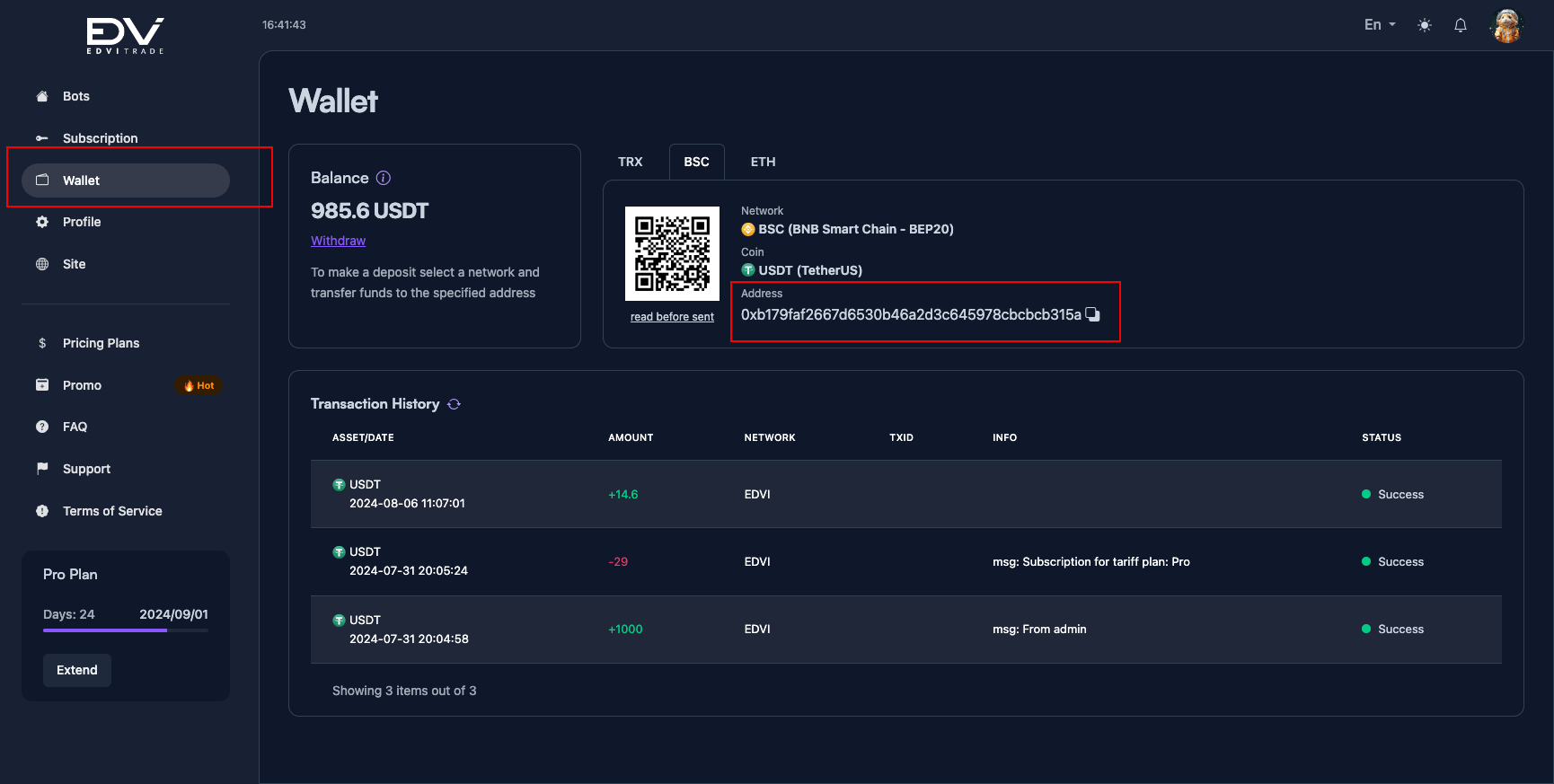
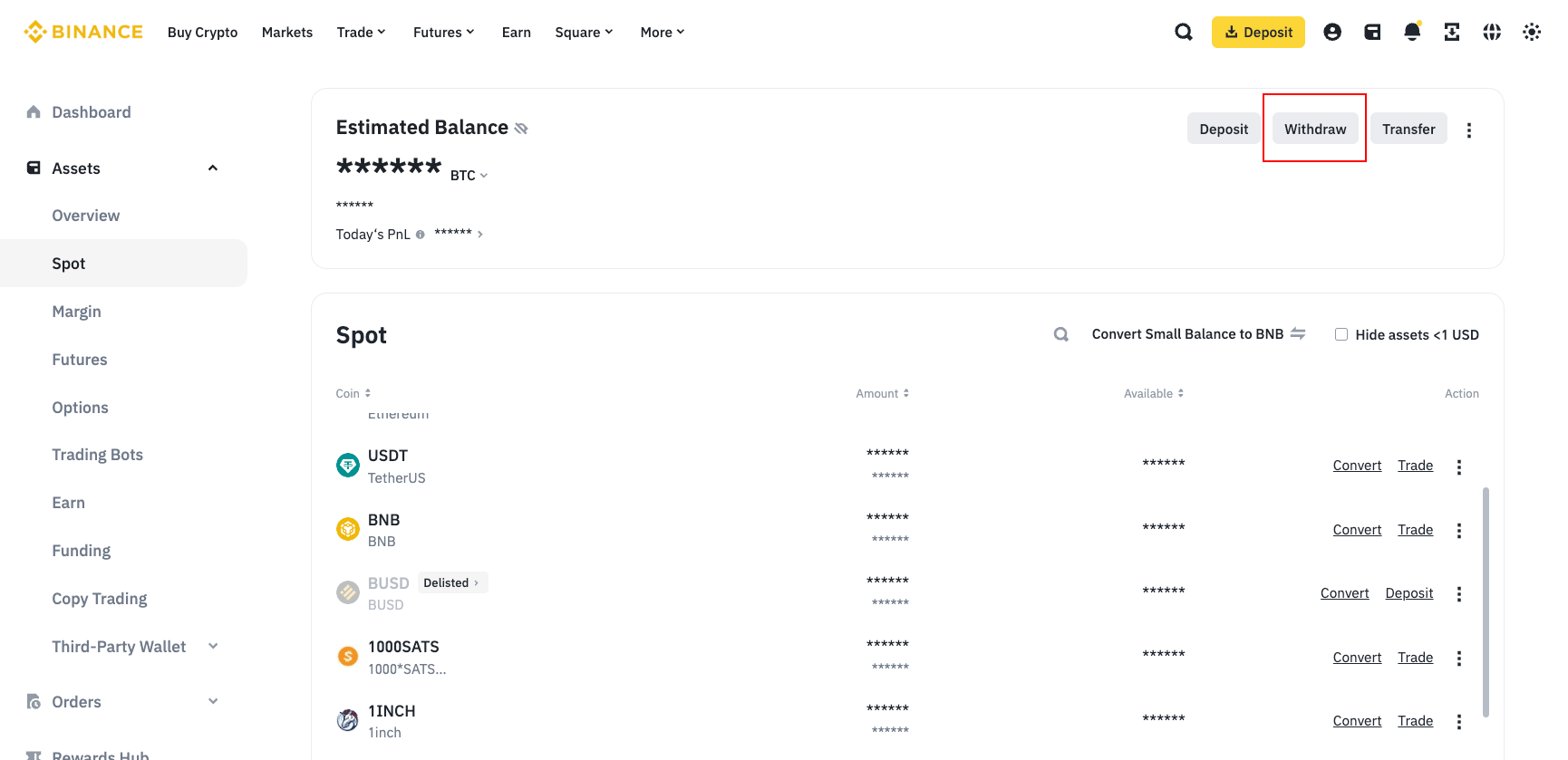
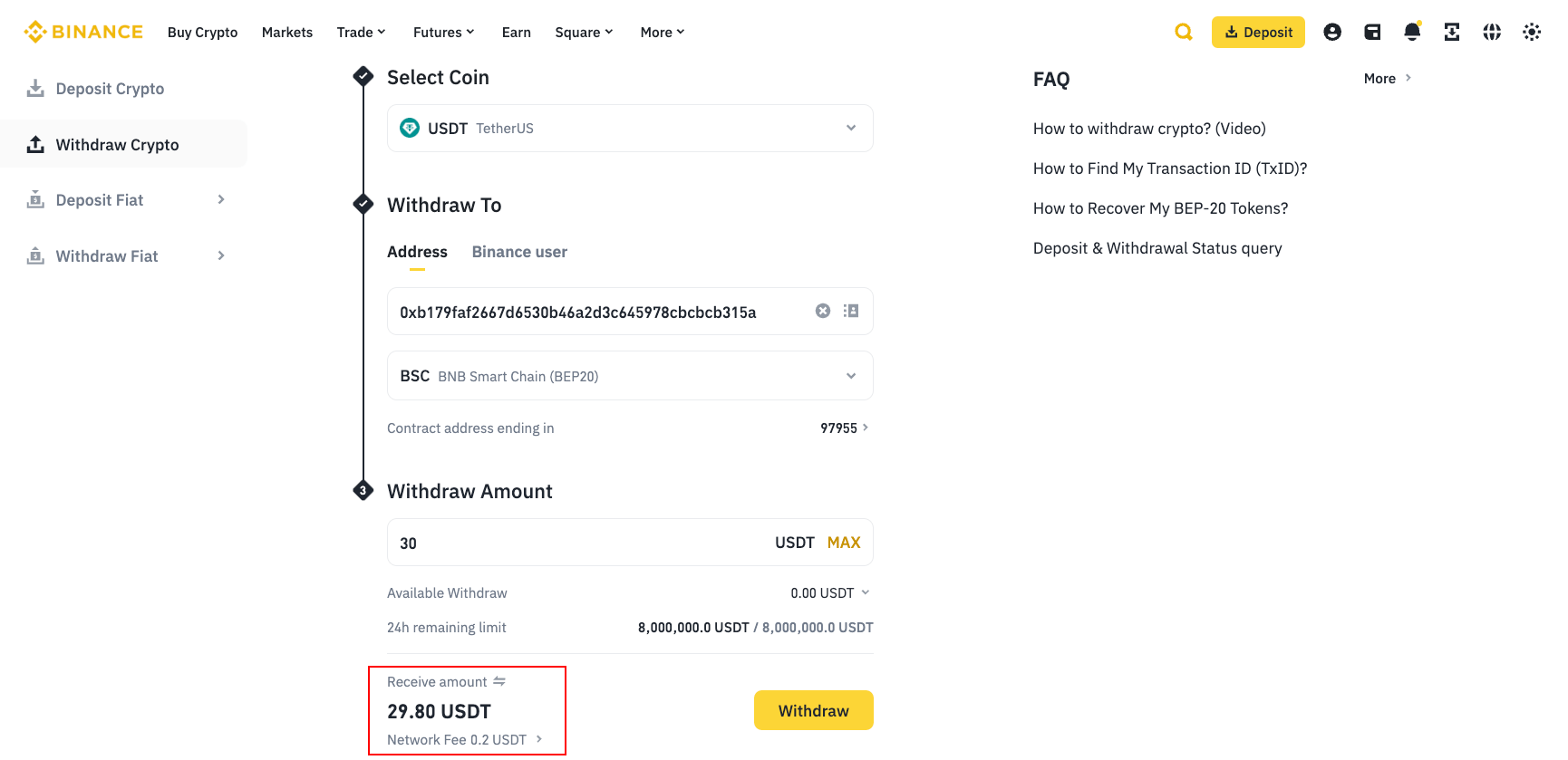
Screenshots in this section were taken from an earlier version of the interface.
How to connect exchange API keys to EDVI Trade strategies?
- Prepare the API key and Secret key from your exchange (OKX also requires the passphrase).
- On the Strategies page choose a strategy and click Connect to a strategy. The connection form has four steps.
- Exchange - select the exchange whose keys you are connecting.
- API keys - paste the keys; EDVI checks them with the exchange before moving on.
- Deposit - choose the deposit mode: Flexible (exchange wallet balance) or Fixed (an amount in USDT). The strategy uses 100% of this amount.
- Trading pairs - tick the trading bots (pairs and timeframes) the strategy may trade and, if needed, set a risk multiplier for each (− / + or Bulk risk change). You can change pairs, risk and deposit later on the Strategy page.
- Done! The strategy appears in Connected strategies. Trading begins with the next signals; most statistics are updated once a day.
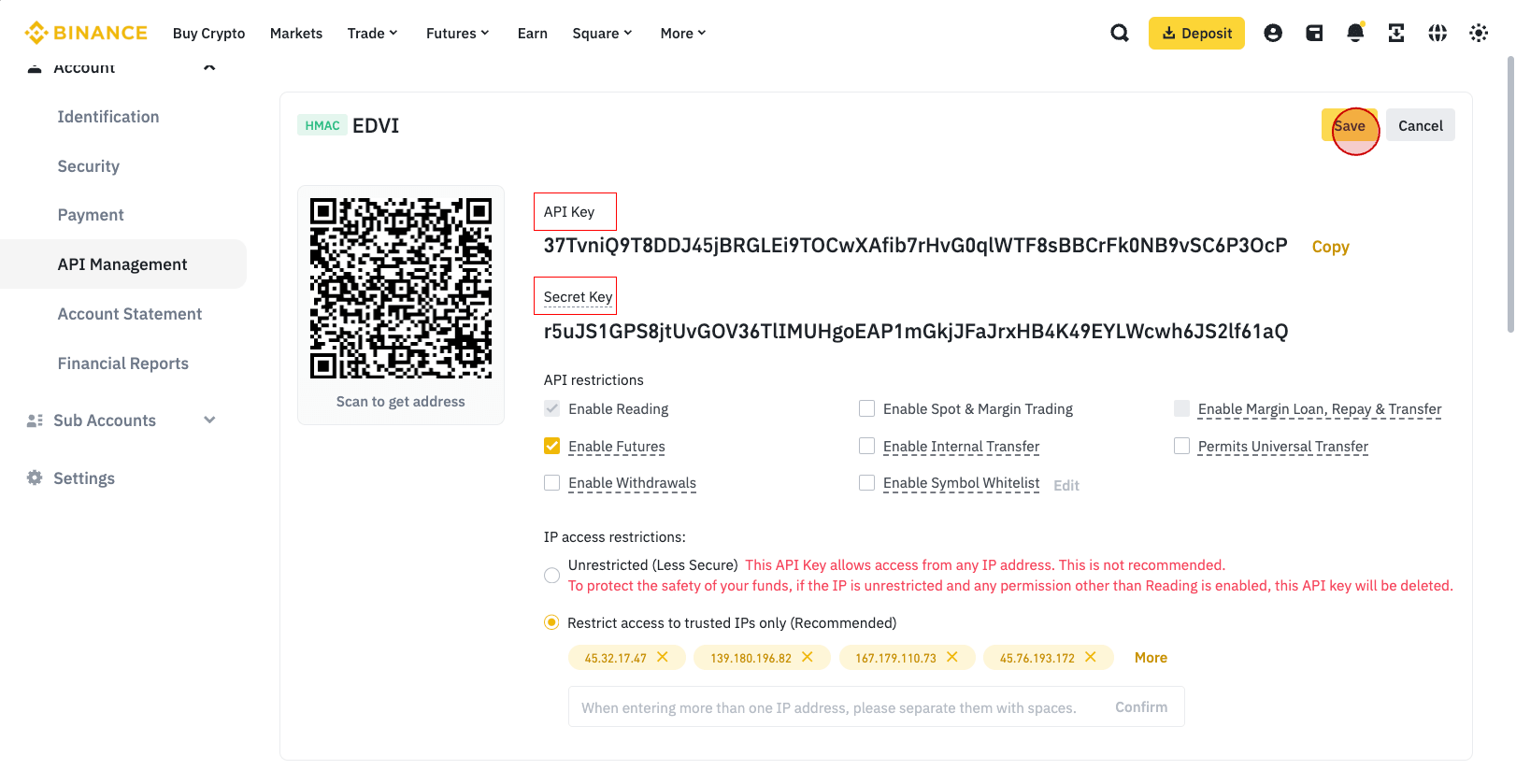
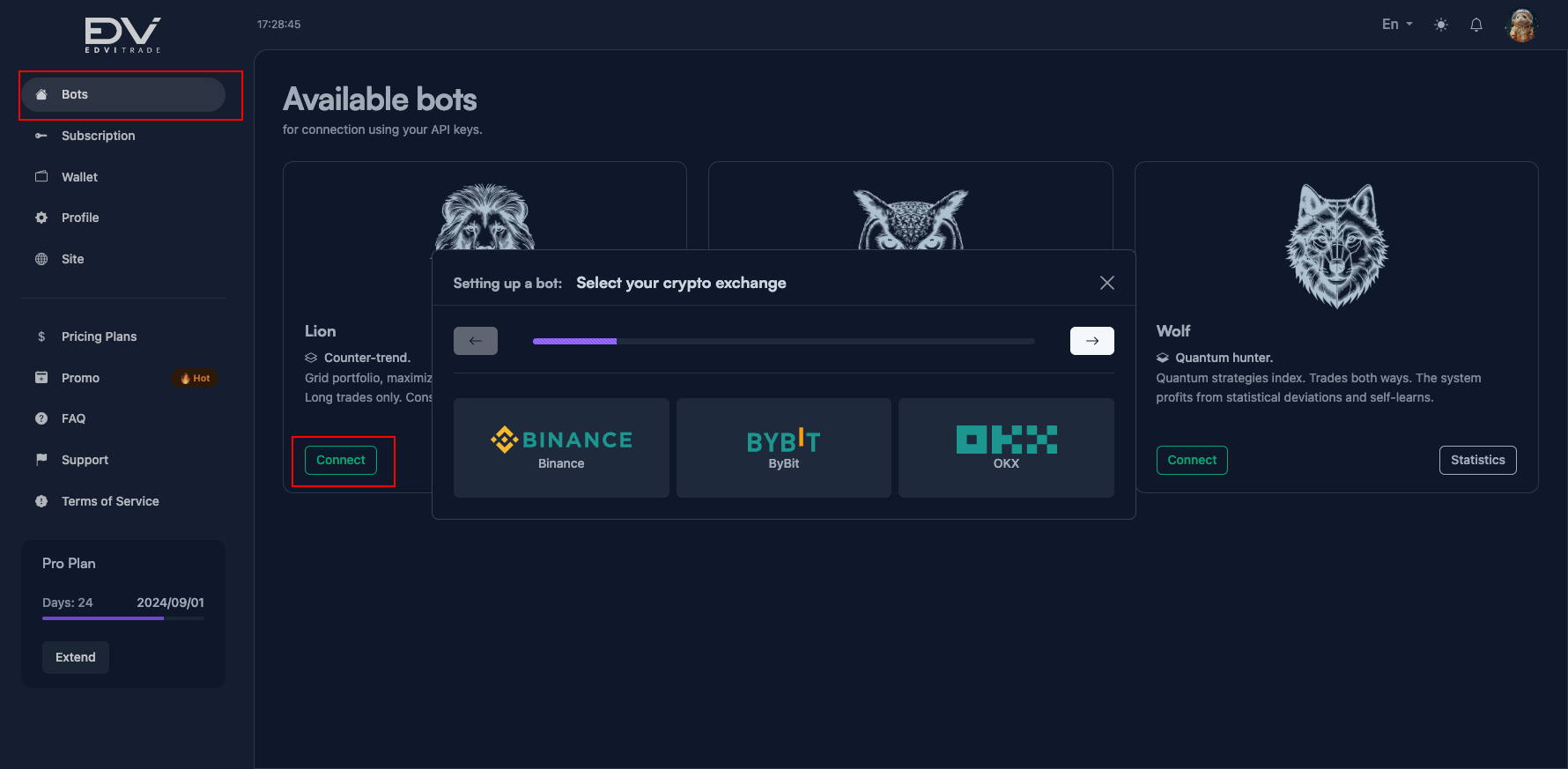
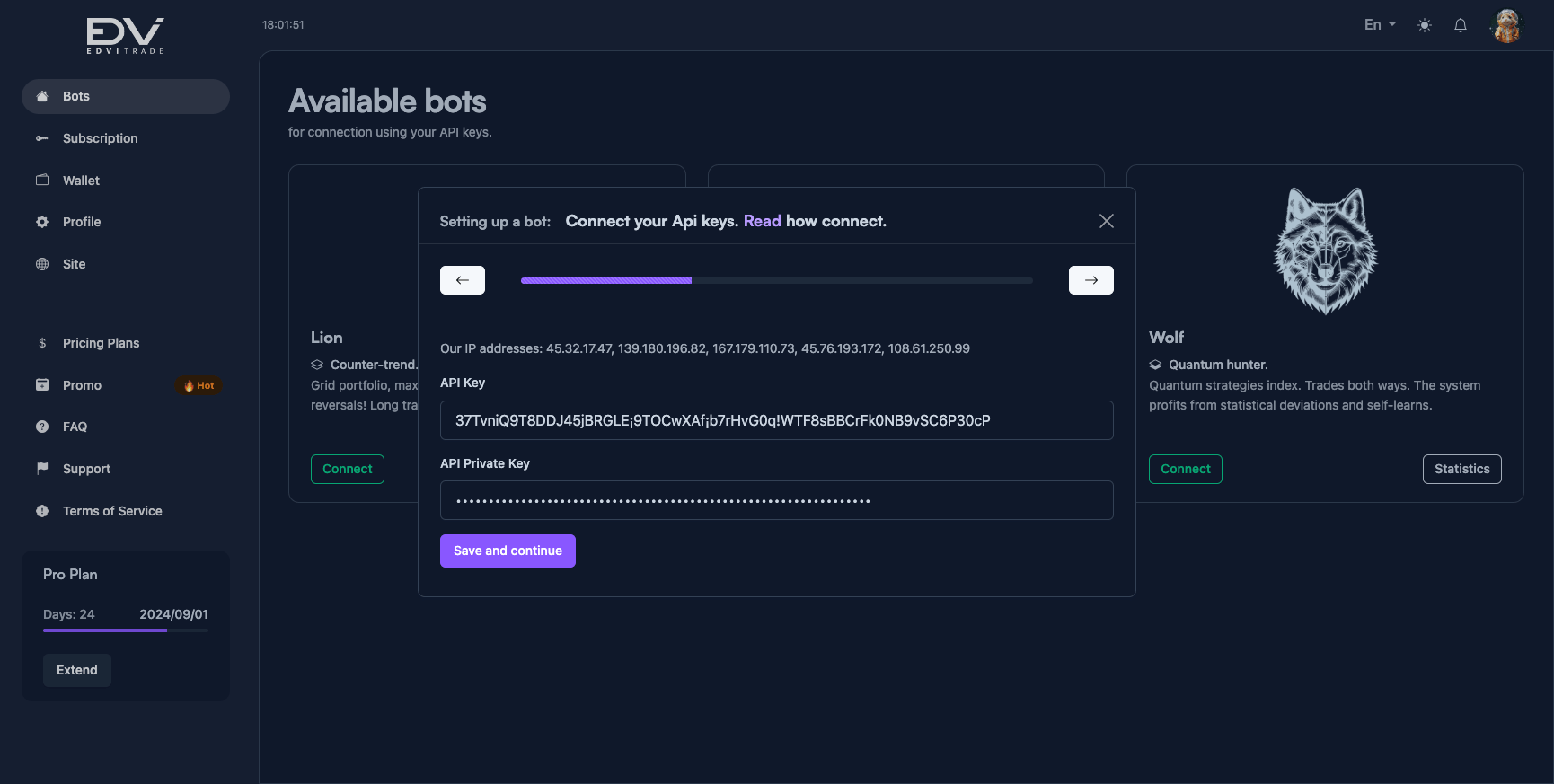
Screenshots in this section were taken from an earlier version of the interface.